
Macfriendly.org

Loading

Archives 2026

Saving and Organizing Social Media Videos on macOS for Offline Use

Saving and Organizing Social Media Videos on macOS for Offline Use

Short videos shape how many Mac users learn new skills, plan projects, and collect inspiration. A thirty second clip can explain a camera setting faster than a long article. A short reel can capture a recipe step that is easy to forget. Social platforms make these moments easy to watch but hard to keep. Feeds refresh. Posts disappear. Connections fail at the worst time. Offline access changes that experience. It turns fleeting clips into reliable reference material that lives on your Mac, ready when you need it.

macOS is especially well suited for this kind of personal media library. Finder previews, Spotlight search, tags, and stable file handling all work together quietly in the background. The missing piece is a thoughtful approach. That starts with choosing a dependable free video downloader and continues with how you name, store, and revisit what you save. This is less about technology and more about building habits that respect your time and attention.

At a Glance

  • Offline videos protect useful content from disappearing feeds.
  • macOS tools make organization simple without extra software.
  • Clear structure prevents clutter and wasted storage.

The Real Value of Offline Video on macOS

Offline video is not only about convenience. It is about reliability. Imagine traveling with limited internet while working on a creative project. Or cooking in a kitchen with weak WiFi. Or reviewing a tutorial minutes before a meeting. Saved videos open instantly. No buffering. No login prompts. No notifications pulling you away. On a MacBook, this speed feels natural because Quick Look and media previews are built into the system.

There is also a focus benefit that many users underestimate. Streaming platforms encourage endless scrolling. Offline clips remove that pressure. You open exactly what you intended to watch. You pause. You rewind. You think. Over time, this calmer interaction changes how information sticks. It aligns well with macOS design philosophy, which favors clarity and intentional use over constant stimulation.

Start With Structure Before Downloading Anything

Organization should come before accumulation. Many people download first and plan later, which leads to messy folders and forgotten files. A better approach is defining a simple structure upfront. Create one main folder, such as Saved Videos. Inside it, add a small number of clearly named subfolders. Common examples include Tutorials, Cooking, Design Ideas, Fitness, or Work References.

This approach mirrors advice found in guides about keeping a clutter free desktop. When files have an obvious home, you spend less time deciding where things go. Finder handles deep folder hierarchies smoothly, and Spotlight makes navigation fast even when collections grow.

Saving Social Clips With Platform Awareness

Different platforms produce different kinds of videos. Short vertical clips dominate social feeds. Longer horizontal videos often focus on instruction. When saving from Instagram, a dedicated Instagram downloader helps preserve the original resolution and orientation. This matters later if you review details or share clips across devices.

Once downloaded, resist the urge to edit immediately. Keep originals intact. Cropping or converting too early can remove context you did not realize you would need. macOS Preview and QuickTime can handle light trimming later if required, without damaging the source file.

File Naming That Still Makes Sense Months Later

Filenames are the quiet heroes of long term organization. Default names rarely help. Rename files as soon as they land on your Mac. Include what the video is about and where it came from. For example, “Sourdough Starter Feeding Instagram” is far more useful than a random string of numbers.

Avoid relying only on dates. Dates matter, but meaning matters more. Good filenames work hand in hand with Spotlight, allowing you to find clips even if you forget the folder they live in. This habit saves minutes every week, which adds up quickly.

Five Practical Habits That Prevent Video Chaos

Strong systems rely on simple routines. These habits keep video collections usable over time.

1. Download with intent. Save clips you expect to revisit, not everything that looks interesting.

2. Rename immediately. Context fades fast, so act while it is fresh.

3. Review weekly. A short review session keeps folders lean.

4. Remove duplicates. Keep the clearest version and delete the rest.

5. Back up valuable folders. Treat reference videos like documents.

Finder Tags and Spotlight as Your Main Tools

Finder tags add another layer of organization without moving files. A red tag might mark urgent videos. A green tag might signal completed viewing. Tags appear across folders, which means one video can belong to several mental categories at once. This flexibility suits creative and research workflows especially well.

Spotlight ties everything together. Typing a few keywords instantly surfaces tagged and named files. Press space to preview. Decide in seconds whether the clip is what you need. No special media manager required. This simplicity is one of macOS ‘strengths.

Storage Planning for Growing Video Libraries

Video files consume space quickly. High resolution clips add up faster than photos or documents. A sensible plan balances convenience and capacity. Keep active projects on your internal drive for speed. Archive older material on external storage. macOS handles external drives smoothly, especially when formatted correctly.

If you are unsure which options fit your setup, guidance on external storage for Mac explains tradeoffs between portable SSDs and larger desktop drives. The goal is steady performance without constantly worrying about disk space warnings.

A Simple Reference Table for Video Organization

Video Category Folder Name Suggested Tag
Learning Tutorials Green
Cooking Recipes Yellow
Creative Inspiration Pink

Small macOS Features That Quietly Help

  • Quick Look previews most formats instantly.
  • Smart Folders gather files by tag or keyword.
  • Preview trims clips without exporting duplicates.
  • Finder comments store notes alongside videos.
  • Spotlight searches filenames, tags, and comments.

Legal Awareness and Personal Use

Saving videos for personal reference is common, yet boundaries matter. Creators retain ownership of their work. Redistribution or commercial use usually requires permission. Understanding concepts like fair use provides helpful context, especially for education or commentary. When unsure, keep downloads private and respect creator intent.

Turning Downloads Into a Calm Reference Library

The goal is not collecting endlessly. It is building a quiet, dependable library that supports your work and interests. With a few thoughtful choices, macOS becomes a trusted place for videos that matter. Files open quickly. Storage stays balanced. Searching feels effortless.

Over time, this approach changes how you interact with social content. Instead of chasing feeds, you keep what is useful and let the rest pass by. That sense of control is the real reward of saving and organizing social media videos for offline use on a Mac.
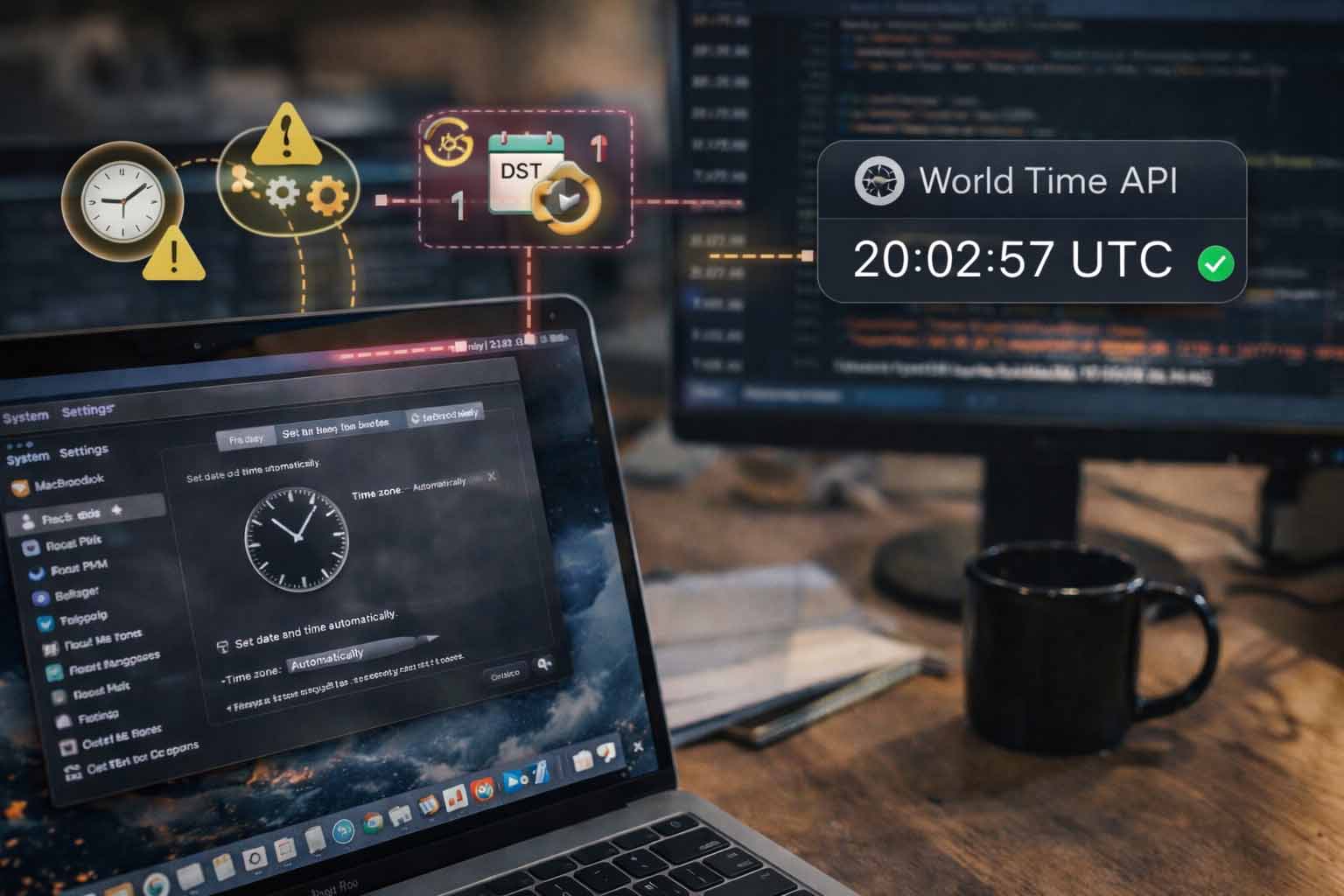

Why macOS Developers Should Rely on World Time APIs Instead of System Time

Why macOS Developers Should Rely on World Time APIs Instead of System Time

macOS developers tend to trust the system clock because it feels close, fast, and familiar. It lives inside every Mac. It updates quietly in the background. It usually looks correct. The problem is that local system time is not a stable foundation for modern software. Cross platform apps, distributed services, scheduled jobs, and shared logs all suffer when time is treated as a local detail rather than shared infrastructure.

Key takeawaymacOS developers should avoid relying on system time because local clocks drift, DST rules change, and user settings vary. These issues break scheduling, logging, and cross platform coordination. A World Time API provides a shared, external source of truth that stays consistent across devices and regions. By using a trusted global time reference, macOS apps gain predictable behavior, clearer logs, safer scheduling, and fewer hidden time bugs in production systems.

Why system time quietly fails macOS software

System time on macOS feels reliable because it is managed by the operating system and synchronized with NTP servers. That sense of safety fades once software moves beyond a single machine. The moment an app talks to another service, schedules work across regions, or stores events for later analysis, local clocks become a liability.

Clock drift still happens. Sleep cycles, network interruptions, and manual changes all affect system time. Developers also forget that users can alter time zones, disable automatic updates, or restore backups that reset clock state. None of these actions look dramatic in isolation. They create subtle bugs that surface weeks later.

Clock drift is not theoretical

Even with NTP enabled, system clocks drift between sync intervals. That drift might be milliseconds or seconds. For UI displays, that is harmless. For distributed logging, token expiry, or job ordering, it creates confusion. Logs appear out of sequence. Requests seem to arrive before they were sent. Debugging becomes slower because timelines cannot be trusted.

DST rules change without warning

Daylight saving time rules are political decisions, not technical ones. Governments change them with little notice. macOS updates its time zone database, but only after users install updates. A machine that lags behind introduces one hour errors that ripple through reports, reminders, and scheduled tasks.

User locale settings add variability

macOS allows deep customization of locale, calendar, and region formats. Two users in the same city may see different interpretations of the same timestamp. Parsing and formatting mistakes creep in, especially when apps mix UI time with backend logic.

Why a shared time source changes everything

A World Time API acts as a neutral referee. It does not care about local preferences, sleep states, or manual adjustments. It returns a consistent timestamp anchored to global standards. That single property simplifies large parts of application logic.

Using World Time API early in a request lifecycle gives macOS apps a stable reference point. That timestamp can be attached to logs, used for scheduling, or compared across services without translation errors.

Consistency across platforms

Many macOS apps are no longer macOS only. They ship companion services on Linux, Windows, or cloud platforms. A shared time source removes assumptions about which machine is correct. Every component agrees on the same moment.

This approach fits well with common Mac workflows that already value clarity and order, such as careful system setup and maintenance. Developers who already care about system hygiene often apply similar discipline to time handling.

Practical macOS development scenarios that break without global time

Time bugs rarely announce themselves. They hide inside features that appear simple. The following scenarios are common pain points for macOS developers building modern tools.

ProblemWhat breaksSymptomBetter approachHow a World Time API helps
Distributed logsEvent orderingLogs appear out of sequenceAttach global timestampsProvides consistent ordering
Scheduled jobsExecution timingJobs run early or lateSchedule against UTCRemoves local offset errors
Token expirationSecurity checksUnexpected logoutsCompare against shared timePrevents clock skew failures
Cross region usersUser eventsConflicting timestampsStore canonical timeNormalizes user input
AnalyticsReportsHourly gaps or overlapsAggregate in UTCAligns data windows
Backups and restoresData integrityOld events look newRevalidate with API timeAnchors records correctly

Fetching global time from macOS code

macOS developers often write in Swift, Objective C, or scripting languages that glue systems together. Fetching global time is straightforward and does not add meaningful latency when done correctly.

Example using Swift and URLSession


import Foundation

struct WorldTimeResponse: Decodable {
    let utc_datetime: String
}

let url = URL(string: "https://time.now/api/utc")!
let task = URLSession.shared.dataTask(with: url) { data, response, error in
    guard let data = data else { return }
    let decoder = JSONDecoder()
    if let result = try? decoder.decode(WorldTimeResponse.self, from: data) {
        print("Global UTC time:", result.utc_datetime)
    }
}
task.resume()

This pattern gives you a clean UTC timestamp that can be converted for display or stored directly. The key is that logic relies on the external value, not the local clock.

For developers managing their machines carefully, similar attention is often applied to system upkeep and configuration. Articles on macOS maintenance, such as guides on Time Machine backups, reflect the same mindset of reducing silent failures.

Using global time in scheduled tasks

macOS apps often rely on background tasks, cron style jobs, or launch agents. Scheduling against local time can cause drift during DST transitions.


let globalNow = Date(timeIntervalSince1970: fetchedUTCTimestamp)
let nextRun = Calendar(identifier: .gregorian)
    .date(byAdding: .hour, value: 1, to: globalNow)!

By basing calculations on global time, the schedule remains stable even as local offsets shift.

Cross language and cross platform considerations

macOS developers rarely work in isolation. Many Mac based teams also maintain backend services written in PHP, Python, or other languages. Time handling must remain consistent across that boundary.

A shared approach allows a Swift app on macOS to agree with a PHP service running elsewhere. Tutorials that show how to get World time in PHP highlight how easy this alignment can be.

Internal tooling often benefits as well. Command line utilities, scripts, and automation tasks gain predictability when they do not depend on the machine they happen to run on.

Error handling, retries, and fallback behavior

No external dependency should be treated as infallible. World time APIs are stable, but networks fail. macOS developers should plan graceful behavior.

  • Cache the last known good timestamp briefly
  • Set clear timeouts on requests
  • Retry with backoff on transient errors
  • Log when fallback paths activate
  • Fail closed for security checks
  • Avoid blocking UI threads
  • Expose diagnostic signals for monitoring

A common pattern is to allow short lived fallback to system time while flagging the state internally. That keeps the app responsive without hiding the issue.

Testing time logic on macOS

Time dependent code is hard to test when it reads directly from the system clock. External time sources improve testability.

  1. Abstract time behind a protocol
  2. Inject a mock time provider
  3. Replay fixed timestamps
  4. Simulate DST transitions
  5. Test cross midnight boundaries
  6. Validate log ordering
  7. Assert token expiry behavior

This approach fits well with macOS development practices that already favor dependency injection and modular design.

Security basics for time based decisions

Time affects security more than many developers realize. Token lifetimes, certificate validation, and replay protection all depend on accurate clocks.

Using a shared time source reduces attack surface created by manipulated system clocks. It also simplifies audits, since timestamps are consistent across systems.

Authoritative guidance from institutions such as NIST time services shows how seriously time accuracy is treated at national and scientific levels. Software systems benefit from aligning with the same principles.

Designing macOS apps with time as infrastructure

The most reliable macOS software treats time like networking or storage, as shared infrastructure. Local clocks become a presentation detail, not a source of truth.

This mindset aligns with other Mac development best practices. Developers already isolate file access, network calls, and permissions. Time deserves the same treatment.

Building calmer systems by trusting the same clock

macOS developers value calm tools that behave predictably. Relying on system time undermines that goal in subtle ways. A shared world time source restores order across logs, schedules, and security checks. Start small, fetch global time once, pass it through your app, and observe how many edge cases disappear. If you want a stable reference, try using World Time API by Time.now as your external clock and build from there.

Unix Time Conversion Guide for System Administrators

Unix Time Conversion Guide for System Administrators

Servers operate continuously, logs accumulate relentlessly, and monitoring systems observe every second without pause. Beneath all of this activity exists a simple numerical standard that keeps machines synchronized and events properly ordered. That standard is Unix time, and it forms the backbone of time handling across modern computing systems. System administrators depend on it daily, whether they are diagnosing outages, reviewing logs, or validating automated workflows.

Unix time is deliberately minimalistic. It avoids calendars, months, and regional rules, choosing instead to count seconds in a straight line from a fixed starting point. Viewing Unix time reveals this simplicity in action, as the current moment appears as a steadily increasing integer. This approach removes ambiguity and allows systems in different locations to agree on the exact same moment without debate.

This article is written for system administrators who work close to operating systems and infrastructure. It focuses on practical understanding rather than abstract theory. The goal is to help you read, convert, and reason about Unix time with confidence, especially during moments when accuracy matters most.

Summary

Unix time measures seconds from a fixed epoch in 1970. It ignores time zones and calendar complexity. Administrators rely on it for logging, automation, APIs, and forensic analysis. Understanding conversion reduces errors and speeds up troubleshooting.

Understanding What Unix Time Represents

Unix time measures the number of seconds that have elapsed since January 1, 1970 at 00:00:00 Coordinated Universal Time. This moment is known as the Unix epoch. Every second that passes increases the count by exactly one, regardless of leap years, daylight saving changes, or regional calendar differences. By design, Unix time excludes leap seconds, which helps preserve consistency across systems.

For system administrators, this design removes many traditional time related pitfalls. When logs from different servers all use Unix timestamps, events can be sorted and compared without additional context. The timestamps remain meaningful regardless of where the server is physically located or how its local clock is configured.

Why System Administrators Rely on Unix Time

Trust in infrastructure depends heavily on predictability. Unix time behaves identically on Linux, macOS, and most networked systems, which allows administrators to reason about events without worrying about local interpretation. If two machines disagree on Unix time, the issue is almost always related to clock synchronization rather than formatting differences.

Time zones are applied only when data is displayed to humans. Internally, systems operate using neutral timestamps that remain stable across migrations, container deployments, and cloud regions. This separation between internal representation and external display significantly reduces operational risk.

“Unix time provides a shared timeline that systems can trust, even when humans disagree about local time.”

Learning to Read Unix Timestamps

At first glance, a ten digit Unix timestamp can appear intimidating. However, administrators quickly learn to estimate its meaning by context. Larger values correspond to more recent dates, and tools exist on nearly every platform to convert these values into readable formats instantly.

A reliable mental workflow involves converting timestamps to UTC first and applying local time adjustments only when necessary. This habit prevents confusion during daylight saving changes and cross regional troubleshooting.

  1. Identify whether the value represents seconds or milliseconds.
  2. Convert the timestamp to UTC.
  3. Apply local time only for presentation or reporting.

Common Conversion Formats

System administrators frequently encounter Unix time alongside formatted date strings. Understanding when and why each format is used helps avoid misinterpretation. Databases often store raw Unix values, while logs and dashboards may present formatted versions for readability.

Format Example Typical Use
Unix time 1700000000 Storage and comparison
UTC date 2023-11-14 22:13:20 Logs and audits
Local time 2023-11-14 17:13:20 User facing displays

Operational Scenarios Where Unix Time Matters

Unix time becomes most valuable during high pressure situations. When an outage occurs, administrators must reconstruct events quickly. Using a single numeric timeline allows logs from applications, databases, and network devices to align without additional manipulation.

Log Correlation

When services run across multiple regions, local timestamps can obscure the real order of events. Unix time removes that ambiguity and makes correlation straightforward. Sorting logs by timestamp reveals the true sequence immediately.

API Communication

APIs frequently exchange timestamps as Unix values to avoid localization issues. Clients convert the values for display, while servers store and process the raw numbers. This separation improves consistency and simplifies validation.

“Machines prefer numbers, while humans prefer calendars. Unix time respects both roles.”

Precision, Limits, and the Future

Standard Unix time measures seconds, but many systems extend this model to milliseconds or nanoseconds for higher precision. While older 32 bit systems faced a limitation known as the year 2038 problem, modern platforms use 64 bit integers that push this boundary far beyond any practical concern.

Time Discipline on macOS Systems

macOS shares deep Unix roots, which makes working with Unix time familiar for administrators. Command line tools support epoch conversions directly, and scripting languages available on macOS handle timestamps consistently with Linux systems. This compatibility reduces friction in mixed environments.

Avoiding Common Human Errors

Most timestamp related incidents result from misunderstanding rather than software failure. Administrators should always verify whether a timestamp is in seconds or milliseconds and confirm the time zone context before drawing conclusions.

  • Assuming local time when the value is UTC.
  • Mixing millisecond and second precision.
  • Trusting formatted output without checking the source.

Building Team Awareness

Helping teams become comfortable with Unix time improves operational efficiency. Sharing real examples from past incidents demonstrates its value far better than theoretical explanations. Once teams see how quickly timelines align, resistance fades naturally.

“Clear timelines reduce stress during incidents and speed up resolution.”

Automation, Scheduling, and Reliability

Automation systems often rely on timestamp comparisons rather than formatted dates. Unix time allows scripts to calculate intervals, enforce delays, and validate freshness without parsing strings. This simplicity improves reliability across cron jobs and monitoring checks.

Security Reviews and Incident Analysis

During security investigations, accurate timelines are critical. Unix time allows events from firewalls, authentication systems, and applications to be merged into a single narrative. This consistency supports accountability and informed decision making.

Closing the Loop on Time Management

Unix time has endured because it solves a fundamental problem cleanly. It gives systems a shared understanding of time that remains stable across platforms and decades. Administrators who master it gain clarity, speed, and confidence in their daily work.

Systems will continue to generate data around the clock. With a solid grasp of Unix time, you can read that data accurately and respond with precision whenever it matters most.