Macfriendly.org

Loading

Category Guides & Tutorials

Why Developers Use World Time APIs on macOS

Why Developers Use World Time APIs on macOS | MacFriendly.org

macOS runs on a diverse set of devices and users around the world. For developers building apps on Mac, keeping time consistent across locations is not just a nice feature – it is a reliability requirement. World time APIs provide accurate time zone data, robust formatting, and reliable scheduling signals that scale from a single Mac to users across continents. In this guide, we explore why world time APIs matter for macOS developers, how to choose the right API, and practical steps to integrate time data into Swift and SwiftUI projects. Whether you are building a calendar app, a travel tool, or a team collaboration app, understanding world time APIs can save you headaches and improve user trust.

What is a world time API and why should macOS developers care

A world time API is a service that serves time zone data and timestamps for locations around the globe. It can provide the current time in a given zone, the offset from UTC, daylight saving time status, and sometimes more advanced data like time zone changes, historical offsets, and reliable formatting patterns.

Why macOS developers care:
– Time zone accuracy matters for calendars, reminders, and deadline tracking.
– Cross locale apps need consistent formatting so users see the same information regardless of device settings.
– Scheduling across teams in different regions depends on reliable time data and DST rules.
– Offline and caching considerations matter for apps that work in travel scenarios or when network access is intermittent.

In short, world time APIs are a standard tool in a macOS developer toolkit because they reduce local computation and avoid drift caused by misconfigured system data.

How world time APIs work on macOS

World time APIs typically operate over HTTP(S) and return timestamps and zone data in a machine readable format such as JSON. A typical workflow looks like this:
1. Your app requests information for a specific time zone, city, or region.
2. The API responds with the current time, UTC offset, DST status, and sometimes the next DST transition.
3. Your app formats and uses that data for UI, scheduling, or calculations.
4. You implement caching to minimize redundant requests and improve performance.

Key benefits for macOS:
– Centralized DST rules ensure your app uses the same transitions as the source data.
– Simplified formatting across locales saves you from maintaining complex locale tables.
– Clear separation of concerns: your app focuses on UI and UX, while the API handles time logic.

Practical use cases for macOS apps

Here are some common scenarios where world time APIs shine on macOS:

1. Global calendars and scheduling

  • Show event times in the user local time and in multiple time zones.
  • Allow users to schedule meetings with participants from different regions without confusion.
  • Automatically adjust reminders when DST changes occur.

2. Travel and flight trackers

  • Display local departure and arrival times based on airports or cities.
  • Compute layovers and time zone conversions for itineraries.
  • Handle overnight flights crossing DST boundaries gracefully.

3. Collaboration tools and remote work

  • Normalize timestamps in chat messages and activity feeds.
  • Schedule calls in the correct local times for participants worldwide.
  • Resolve confusion about due dates and deadlines across teams.

4. Logging, analytics and telemetry

  • Store timestamps in a consistent time zone or in UTC for analytics accuracy.
  • Align events from multiple devices when users travel between time zones.
  • Reduce drift caused by local machine clock skew or misconfiguration.

5. Localization and UI consistency

  • Use time zone data to present date and time formats that match user expectations.
  • Adapt date pickers, clocks, and timers to different locales automatically.

Choosing the right world time API for macOS

Not all world time APIs are created equal. When selecting a service for macOS development, consider these factors:

Data coverage and accuracy

  • Does the API cover all time zones your app might encounter?
  • Are historical offsets and DST rules up to date?
  • Can you query by city, country, or time zone name easily?

Reliability and latency

  • What is the typical response time for your target regions?
  • Does the API offer caching headers or offline fallback options?
  • Is there a status page and a documented SLA?

Offline capabilities and caching

  • Can you prefetch data and cache it for offline use?
  • Are there reasonable cache invalidation rules when DST changes?
  • Does the API support incremental updates to minimize data transfer?

Privacy and security

  • Does the API log usage data and location details?
  • Do you need to implement encryption in transit and secure storage for any sensitive time data?

Cost and rate limits

  • Is there a free tier that fits your project scope?
  • Are rate limits predictable and easy to work around with batching?
  • Do you pay per request or per month, and are there enterprise options?

Ease of integration

  • Is there a Swift friendly SDK or well documented REST endpoints?
  • Are there example queries for common use cases like current time in a city or time zone offset?
  • How well does the API play with URLSession and Combine or async/await in Swift?

How to integrate a world time API in a macOS project

This section offers practical steps you can adapt to your app. The examples focus on Swift and URLSession, because that pairing is common for macOS apps.

1. Decide on a data model

  • TimeZoneInfo: time zone identifier, currentTime, utcOffsetSeconds, dstActive, nextDSTTransition
  • CacheEntry: TimeZoneInfo plus timestamp of when data was fetched
  • AppSettings: preferred time zone, default format, and whether to show times in UTC

2. Fetch current time data

  • Endpoint pattern: https://worldtimeapi.org/api/timezone/{Area}/{Location}
  • Example: https://worldtimeapi.org/api/timezone/Europe/London
  • In Swift, use URLSession to fetch and decode JSON into your data model
    Inline example:
    let url = URL(string: "https://worldtimeapi.org/api/timezone/\(timezone)")!
    let (data, _) = try await URLSession.shared.data(from: url)
    let info = try JSONDecoder().decode(TimeZoneInfo.self, from: data)

3. Handle daylight saving time

  • Rely on the API to tell you if DST is active and what the offset is.
  • In Swift, you can convert to local time with Foundation:
  • let formatter = DateFormatter()
  • formatter.timeZone = TimeZone(identifier: info.timezone)
  • formatter.dateStyle = .medium
  • formatter.timeStyle = .short
  • let localString = formatter.string(from: Date())
  • The key is to separate display formatting from the underlying time data.

4. Implement caching

  • Store the latest TimeZoneInfo in a simple cache with a timestamp.
  • Decide an appropriate refresh policy (for example, refresh every 12 hours or when the user toggles a different location).
  • Use a lightweight in-memory cache for quick access and a persistent store for offline scenarios.

5. Local formatting and user interface

  • Use Foundation DateFormatter to present times in the user’s preferred language and format.
  • If supporting multiple time zones in the UI, present a list with the current offset and a short label like “GMT+1” or “EST”.

6. Error handling and retries

  • Gracefully handle network failures by falling back to cached data or local system time when appropriate.
  • Implement exponential backoff for retry attempts to avoid hammering the API in poor network conditions.

7. Testing time-based features

  • Use deterministic clocks in tests to simulate DST transitions.
  • Mock API responses for different time zones to ensure UI reflects correct information.

Best practices for macOS time data in apps

Adopting a few best practices helps ensure your app remains reliable and user friendly:

  • Prefer UTC for storage, local time for display
  • Store timestamps in UTC to avoid ambiguity across DST transitions and user locales.
  • Convert to local time only for display purposes.
  • Keep a single source of truth
  • Centralize time zone data retrieval in a single service class rather than scattering calls across the codebase.
  • Respect user preferences
  • If a user chooses to display times in a specific time zone, honor that setting consistently.
  • Plan for DST changes
  • DST rules can change; have a strategy to update the data without requiring app updates.
  • Optimize network usage
  • Batch requests when possible and use caching to minimize latency and data usage.
  • Document time data flows
  • When multiple components interact with time data, document how times are stored, converted, and displayed.
  • Consider accessibility and clarity
  • Provide clear labels like “Local time” and “UTC” to avoid confusion for users.

Technical tips and tricks you can apply today

  • Use ISO 8601 standards for time stamps when exporting data to servers and other services.
  • When showing future times like reminders, consider potential user locale changes and DST transitions that could affect finish times.
  • Create a small utility to format times in several zones at once for meeting planning screens.
  • Build a lightweight offline cache to ensure the app still provides useful time information when the network is unavailable.

Security and privacy considerations

  • Minimize the amount of location data you send to a time API. If you can query by time zone name without specific coordinates, prefer that approach.
  • Use HTTPS to protect data in transit and validate server certificates to prevent man-in-the-middle attacks.
  • If you store time data locally, ensure it is protected according to your app’s security policy and user expectations.

Testing and debugging world time integrations

  • Create test data for a variety of zones and DST transitions worldwide.
  • Include edge cases such as DST start and end dates, leap years, and regions with irregular DST rules.
  • Test across a range of macOS versions to confirm time zone handling is consistent.
  • Use unit tests to verify that formatting logic matches user expectations across locales.

Real world project blueprint: time aware notes app

Imagine a notes app that schedules reminders across time zones for a remote team. Here is a compact blueprint you can adapt:

  • Data model:
  • Reminder: title, timeUTC, targetTimeZone, displayTime
  • Service layer:
  • TimeAPIClient to fetch current offset and DST rules
  • TimeFormatter to convert to display strings in user locale
  • UI:
  • A single screen that shows the reminder in Local time, and a side panel with the same reminder in several other zones
  • Caching:
  • Cache per time zone with a 6 hour refresh policy
  • Testing:
  • Mock API responses for zones like London, New York, Tokyo

This blueprint highlights how world time data can drive a polished user experience while keeping the codebase clean and maintainable.

Backup and maintenance: keeping time data reliable

Backups and maintenance are essential to keep time data reliable over the life of a Mac app. Consider these practices:

  • Regularly audit time data sources
  • Review API status, data update frequency, and any changes to DST rules.
  • Maintain a robust backup plan
  • Keep local caches and critical time data backed up or recoverable from a remote source if the device is lost.
  • Implement graceful fallback strategies
  • If a time API becomes temporarily unavailable, rely on the latest cached data and clearly indicate to users that times may be stale.
  • Document release notes for time related changes
  • When DST rules change or the API makes a non backward compatible update, inform users and update your documentation.

Final thoughts: why world time APIs belong in a macOS developer’s toolkit

World time APIs help Mac developers deliver accurate, consistent, and user friendly time related experiences. They reduce the risk of incorrect meeting times, scheduling glitches, and time zone confusion that can frustrate users across the globe. By choosing a reliable API, implementing thoughtful caching, and following best practices for formatting and localization, you can build robust macOS apps that feel fast, precise, and trustworthy.

If you are just starting out, experiment with a simple endpoint such as the current time for a chosen zone, then gradually layer in more features like DST awareness and multi zone displays. As your app grows, a well designed time data layer will save you time and reduce maintenance headaches. For MacFriendly.org readers, this approach aligns with our focus on expert guides and practical tips for macOS software, backup habits, and staying up to date with Apple ecosystem updates.

Remember, the most important thing is to keep time accurate, displayed clearly, and synchronized across locales. A small investment in time data today pays off with a smoother user experience tomorrow.

Best Backup Strategies for Mac Users in 2026

Best Backup Strategies for Mac Users in 2026

In 2026 your Mac deserves a rock solid safety net. Data loss can strike anytime from a hardware failure to a ransomware hit or a simple accidental delete. The good news is you can minimize risk with a smart backup strategy that blends local speed, cloud resilience, and reliable recovery options. At MacFriendly.org we specialize in practical, expert guides for Mac users. This article walks you through proven backup plans, hands on setup tips, and the tools you should consider this year so you can protect your photos, documents, and work without slowing down your day.

The 3-2-1 Rule for Mac Backups

A time tested guideline helps you design a robust backup system without overcomplicating things. The 3-2-1 rule is simple yet powerful.

3 copies of your data

  • Primary working copy on your Mac
  • One local backup on an external hard drive or SSD
  • One additional copy in a separate location such as a cloud backup or another external drive

2 different media types

  • Example: internal SSD plus an external HDD or external SSD
  • This reduces the risk if a single drive type fails due to a common failure mode

1 offsite copy

  • A cloud backup or an external drive stored away from your home or office
  • Offsite backups guard you against theft, fire, or natural disasters

Why this matters in 2026:
– Cloud options have matured and offer fast restores, strong encryption, and simple management
– Local backups remain unbeatable for quick restores and workflow continuity
– Offsite copies protect you from localized catastrophes that could affect both devices

Local backups: Time Machine and disk clones

Local backups are the backbone of a reliable Mac backup strategy. They are fast to set up, simple to restore from, and great for quick data recovery.

Time Machine basics

Time Machine is built into macOS and is designed to work with a wide range of drives. It creates incremental backups so you can jump back to versions of files or recover entire folders with ease.
– Pros: seamless macOS integration, automatic hourly backups by default, easy file level restore
– Cons: can be slower on large datasets, depends on a compatible drive, not designed for cross platform restoration

How to set up Time Machine:
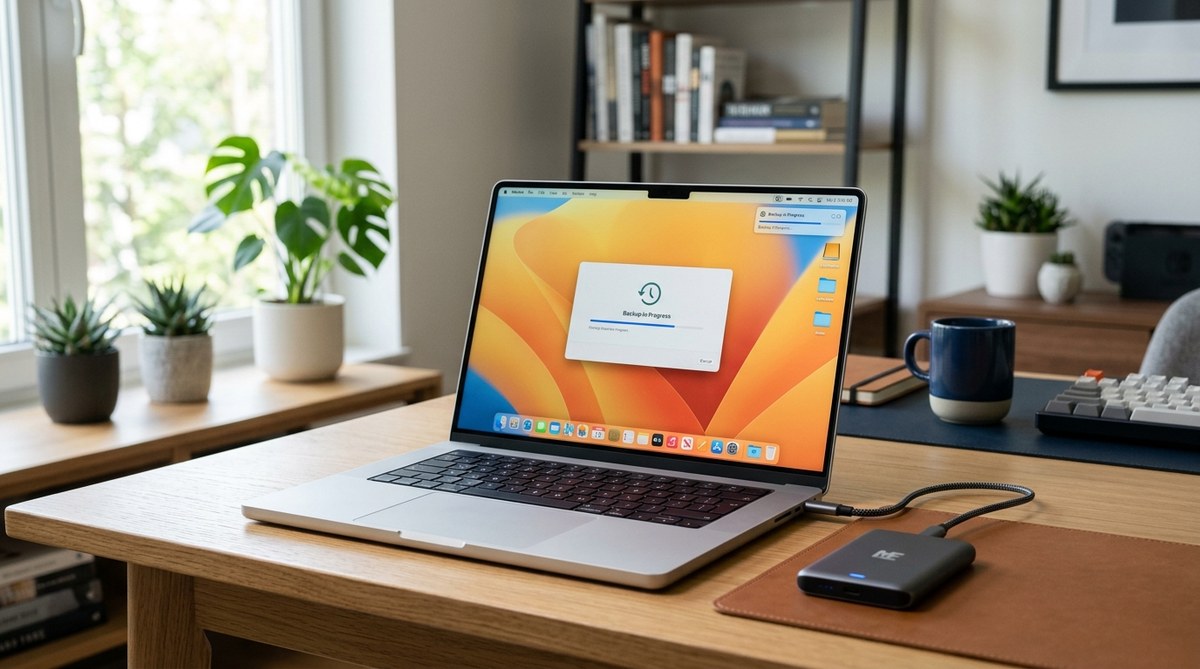
1) Connect an external drive formatted for macOS
2) Open System Settings > General > Time Machine (or System Preferences on older macOS)
3) Select Backup Disk and turn Time Machine on
4) Optionally choose to back up only when on power or when on WiFi
5) Wait for the first backup to complete, then confirm regular backups are occurring

Disk cloning with Carbon Copy Cloner and similar tools

Disk cloning creates a bootable mirror of your Mac. This is especially valuable if your main drive fails and you need to start up quickly from a clone.
– Popular options: Carbon Copy Cloner, SuperDuper, ChronoSync Express
– Benefits: bootable backups, faster disaster recovery, ability to migrate to a new drive with minimal downtime

How to approach cloning:
– Choose a reputable cloning app and a fast external SSD
– Schedule regular clones (daily or weekly depending on activity)
– Verify integrity after each clone and keep at least two clones in rotation to minimize risk

Bootable backups and why they matter

A bootable backup lets you start your Mac from the backup drive, bypassing the possibility of a damaged system on the internal drive.
– Practical use: if your Mac won’t boot, you can plug in the bootable drive and resume work
– Best practice: rotate between two bootable clones and periodically test booting to ensure files and apps run correctly

Cloud backups for Mac

Cloud backups add offsite protection and make restoring across devices simple. They also support version history and automated daily saves.

Why cloud backups matter

  • Offsite protection during theft, fire, or water damage
  • Access from multiple devices or locations
  • Versioned backups protect you against ransomware and accidental edits

Top cloud backup options for Mac in 2026

  • Cloud backup services with automatic Mac support and strong encryption
  • Apps that optimize for macOS backups and allow selective restore
  • Providers offering easy restore paths to a new or repaired Mac

What to look for in a cloud backup for Mac:
– End-to-end encryption and optional local encryption for backups
– Unlimited or scalable storage with predictable pricing
– Efficient first backup and smart incremental updates
– Clear restore options, including single file restores and full device recovery

Practical cloud backup plan for most Mac users

  • Use Time Machine to maintain a local on site backup
  • Add a dedicated cloud backup service for offsite protection
  • Keep a secondary cloud backup service as a different provider to diversify risk

Hybrid strategies: combine local and cloud

A hybrid approach leverages the speed of local backups with the resilience of cloud backups. This is the strategy many professionals use at home or in small offices.

  • On site backups: Time Machine plus a bootable disk clone
  • Offsite backups: cloud backup for important folders and documents
  • Automated workflows: set both local and cloud backups to run on different schedules to minimize peak network usage
  • Data prioritization: categorize files into essential items that require frequent backups and larger media archives that can be backed up less often

Benefits of hybrid backups:
– Faster recovery from local hardware failures
– Protection against both localized and remote threats
– Flexibility to restore specific items without pulling a full backup

Quick guides for different Mac user types

Home user

  • Set up Time Machine to a reliable external drive
  • Create a bootable clone on a second drive
  • Add a cloud backup for critical files such as documents, photos, and school work
  • Schedule backups for after work hours to avoid slowdowns

Freelancer or remote worker

  • Use a portable SSD for daily work and a bootable clone for quick recovery
  • Cloud backup for client work and receipts with version history
  • Use selective backup to protect only essential project directories to save bandwidth

Small business or team

  • Centralize backup planning with a shared external drive for local backups
  • Implement a cloud backup with centralized restore capabilities
  • Ensure disaster recovery testing is performed quarterly to validate restore processes

Security and privacy in backups

Security should be built into every layer of your backup strategy.

  • Encryption: enable encryption on both local and cloud backups
  • Access control: use strong, unique passwords and enable two factor authentication where possible
  • Secure transfer: prefer backup solutions that use TLS for data transfer
  • Ransomware resilience: retain multiple versions and ensure cloud backups provide versioning and quick restoration
  • Privacy considerations: review where data is stored and the provider’s data handling policies

Important reminder:
– Do not store passwords in plain text in backup locations
– Regularly review backup logs to catch failures or interruptions early

Performance and reliability considerations

Backup performance varies based on drive speed, network bandwidth, and the amount of data. Here are practical tips to keep backups smooth.

  • Schedule backups during off peak hours to maximize bandwidth
  • Use an SSD for your primary backup drive to accelerate the initial and subsequent backups
  • Keep your backup software updated to benefit from performance and security improvements
  • Test restores monthly to confirm backups are usable
  • If you work with large media libraries, consider tiered backups that separate large files from frequently edited documents

Common mistakes and how to avoid them

  • Not testing restores: a backup is only as good as your ability to restore
  • Relying on a single backup location: always have at least one offsite copy
  • Skipping encryption and security settings: this can expose sensitive data
  • Forgetting to back up hidden or system files: ensure system and application data are included
  • Letting backups run too infrequently: set automatic backups and monitor failures

Tools and apps to consider in 2026

  • Time Machine on macOS for simple, reliable local backups
  • Carbon Copy Cloner or SuperDuper for bootable local clones
  • ChronoSync Express for flexible backup and sync workflows
  • Backblaze or similar cloud backup services for offsite protection
  • IDrive, Arq, or Duplicacy as additional cloud or hybrid options
  • Disk management tools to verify drive health and plan migrations

Note on selection: choose tools that fit your workflow, budget, and comfort level with automation. The goal is a predictable routine you actually follow.

Step by step: 10 minute backup setup checklist

1) Decide on two storage locations: an external drive for local backups and a cloud service for offsite backup
2) Format the external drive with the Mac file system you prefer (APFS for Time Machine is a common choice)
3) Turn on Time Machine and point it to the external drive
4) Create a second external drive for a bootable clone and set up a cloning schedule
5) Install a cloud backup client and configure important folders to back up automatically
6) Enable encryption on both local and cloud backups
7) Set backup schedules during off peak hours and avoid conflicts with other heavy network tasks
8) Test a file restore from Time Machine and a full restore from the bootable clone
9) Test a cloud restore of a single file and a full device recovery
10) Review backup reports monthly and adjust settings if data grows or workflow changes

By following these steps you will have a resilient backup setup that covers both rapid restores and offsite protection.

Frequently asked questions

  • How often should I back up my Mac?
  • Ideally every day for critical data, with hourly backups for Time Machine when possible
  • Is Time Machine enough on its own?
  • For most users Time Machine is a great local solution, but a cloud backup adds essential offsite protection
  • Should I use multiple cloud backup providers?
  • Using more than one provider can reduce risk by diversifying service outages and policy differences
  • What is a bootable backup and do I need one?
  • A bootable backup can start up your Mac from the backup drive. It is highly recommended for mission critical work

About MacFriendly.org and how we can help

MacFriendly.org is your ultimate guide to Mac software, tips and Apple updates. We publish expert guides, pro tips and the latest Apple news to help developers and everyday users optimize their Mac experience. If you want more hands on walkthroughs, check our ongoing tutorials on backups, maintenance, and performance improvements for macOS. We aim to provide practical, step by step instructions that you can apply immediately.

Would you like us to tailor a backup plan to your exact setup? Tell us about your Mac model, storage needs, and whether you rely on local, cloud, or hybrid backups. Our guides are designed to evolve with new macOS updates and the changing landscape of backup technology so you can stay protected in 2026 and beyond.

How to Install and Run Android Apps on Mac Using Emulators Safely

How to Install and Run Android Apps on Mac Using Emulators Safely

Running Android apps on a Mac used to feel complicated. Now it is part of many workflows. Designers test mobile layouts on larger screens. Gamers want keyboard precision. Developers validate builds without grabbing a spare phone. Even casual users sometimes need access to Android only apps that have no macOS equivalent.

The challenge is not getting an app to open. The real challenge is doing it safely. Installing unknown packages, downloading files from random mirrors, or granting broad permissions inside an emulator can expose your Mac to unnecessary risk. A careful approach keeps performance high and your system clean.

Quick Safety Summary

  • Use reputable Android emulators with active updates.
  • Download APK files only from verified sources.
  • Limit emulator permissions and shared folders.
  • Keep macOS optimized for stable performance.
  • Understand what an APK contains before installing.

Why People Run Android Apps on macOS

There are practical reasons to bring Android software into your Mac environment. Some banking or streaming apps are region locked on desktop browsers. Mobile games often provide better control mapping with a keyboard. Developers need repeatable testing conditions across screen sizes. Marketing teams preview campaigns as end users would see them.

Apple Silicon Macs have improved virtualization performance significantly. Emulators now run smoothly on many systems, especially with sufficient RAM and storage. That said, smooth performance does not mean secure configuration. Running Android on macOS creates an additional layer that needs attention.

Understanding Emulators Before Installing Anything

An emulator recreates Android hardware and software inside a virtual environment. It behaves like a device within your Mac. You can install apps through the Play Store or by sideloading APK files. That flexibility is powerful. It also introduces risk if used carelessly.

A safe setup begins with choosing well maintained emulator software. Look for active updates, proper code signing, and compatibility with current macOS versions. If you are unsure about your Mac’s performance limits, review guidance on improving Mac performance before adding heavy virtualization workloads.

Safe APK Installs Without Shady Shortcuts

Many users sideload apps into emulators. This is common for beta builds, region restricted apps, or enterprise testing. The key is sourcing the file responsibly. Downloading random APKs from pop up driven sites is risky. Files can be modified or repackaged with malicious code.

If you need to obtain an APK directly, use a trusted apk download source that emphasizes file verification, integrity checks, and transparent version information. A reputable platform focuses on clean distribution, fast downloads, and validation rather than aggressive ads or forced installers.

After downloading, scan the file with your preferred security tool. Inside the emulator, install the APK through the official import or drag and drop method supported by that emulator. Avoid command line workarounds unless you understand exactly what you are executing.

What an APK Really Contains

An APK is a packaged Android application. It includes compiled code, resources, assets, and a manifest file describing permissions. That manifest is critical. It defines access to camera, storage, network, and more. You can review the general structure of the Android application package format through technical documentation such as Android application package documentation.

Understanding this structure helps you evaluate risk. If a simple note taking app requests microphone and SMS permissions, that is a red flag. Inside an emulator, permissions still matter because shared folders and clipboard access can bridge to your Mac environment.

Step by Step Setup for a Secure Emulator Environment

Setting up properly from the beginning reduces long term headaches. Follow this structured approach.

1. Install the emulator from its official website. Verify the developer signature if possible. Avoid third party download portals.

2. Allocate only necessary system resources. Assign reasonable RAM and storage, not the maximum your Mac offers.

3. Disable unnecessary shared folders between macOS and the emulator. Limit exposure to important directories.

4. Sign in to the Play Store only if needed. For testing, consider using a secondary Google account.

5. Keep both macOS and the emulator updated. Security patches matter on both layers.

Comparing Installation Methods

There are generally two ways to install Android apps in an emulator. Each has pros and cons.

Method Security Level Best For Risk Notes
Play Store Install High Everyday apps Still review permissions
Direct APK Sideload Medium to High Testing or region locked apps Depends on source integrity

For most users, Play Store installs are simpler. Sideloading is common in development and QA. Both can be safe if handled carefully.

Common Mistakes That Put Your Mac at Risk

Users often focus on getting the app running fast. They overlook configuration details that matter long term.

  • Granting full disk access to the emulator without reason.
  • Sharing the entire Documents folder with the virtual device.
  • Using primary Google accounts inside test environments.
  • Ignoring emulator updates for months.

Each of these shortcuts expands the attack surface. Even if an app misbehaves inside Android, it should not easily access your macOS files. Controlled boundaries are part of responsible setup.

Performance Tuning Without Sacrificing Safety

Emulators consume CPU and memory. On older Intel Macs, this can cause lag. On Apple Silicon, performance is usually better, yet resource management still matters. Close unnecessary background apps before launching the emulator. Monitor Activity Monitor for unusual spikes.

If your Mac feels sluggish, adjust startup items and background services. Practical system hygiene tips can be found in guidance about managing startup items. A lean system reduces crashes and improves emulator stability.

Avoid third party optimization tools promising instant speed boosts. Many add unnecessary processes. Manual configuration is often safer and more transparent.

When You Should Not Use an Emulator

An emulator is powerful, but not always appropriate. Financial apps tied to hardware security modules may not function correctly. Some streaming services block virtual devices. Corporate environments might restrict virtualization entirely.

If you are handling highly sensitive data, consider using a physical Android device instead. Hardware isolation reduces complexity. Emulators are excellent for testing and convenience, not always for maximum security.

Practical Workflow for Developers and Power Users

For developers, repeatability matters. Create clean emulator snapshots before installing experimental builds. After testing, revert to the snapshot rather than uninstalling manually. This keeps your virtual environment tidy.

Document each installed APK version. Track build numbers and permission changes. Treat the emulator like a controlled lab environment. That discipline prevents confusion and accidental exposure.

Gamers and casual users can adopt similar habits. Install only what you actively use. Remove unused apps. Restart the emulator occasionally. Small routines reduce clutter and background activity.

Running Android Apps on Mac With Confidence

Using Android apps on macOS does not have to feel risky. The technology is mature. Emulators are stable. Apple hardware is powerful. The difference between a safe setup and a problematic one often comes down to habits.

Choose reliable software. Source APK files carefully. Limit permissions. Keep your Mac clean and updated. Understand what you are installing rather than clicking through prompts quickly. With that approach, your Mac becomes a flexible workspace that supports Android tools without compromising security.

Android and macOS can coexist smoothly. A thoughtful configuration gives you the freedom of mobile apps on a desktop screen, without exposing your system to unnecessary threats.

Saving and Organizing Social Media Videos on macOS for Offline Use

Saving and Organizing Social Media Videos on macOS for Offline Use

Short videos shape how many Mac users learn new skills, plan projects, and collect inspiration. A thirty second clip can explain a camera setting faster than a long article. A short reel can capture a recipe step that is easy to forget. Social platforms make these moments easy to watch but hard to keep. Feeds refresh. Posts disappear. Connections fail at the worst time. Offline access changes that experience. It turns fleeting clips into reliable reference material that lives on your Mac, ready when you need it.

macOS is especially well suited for this kind of personal media library. Finder previews, Spotlight search, tags, and stable file handling all work together quietly in the background. The missing piece is a thoughtful approach. That starts with choosing a dependable free video downloader and continues with how you name, store, and revisit what you save. This is less about technology and more about building habits that respect your time and attention.

At a Glance

  • Offline videos protect useful content from disappearing feeds.
  • macOS tools make organization simple without extra software.
  • Clear structure prevents clutter and wasted storage.

The Real Value of Offline Video on macOS

Offline video is not only about convenience. It is about reliability. Imagine traveling with limited internet while working on a creative project. Or cooking in a kitchen with weak WiFi. Or reviewing a tutorial minutes before a meeting. Saved videos open instantly. No buffering. No login prompts. No notifications pulling you away. On a MacBook, this speed feels natural because Quick Look and media previews are built into the system.

There is also a focus benefit that many users underestimate. Streaming platforms encourage endless scrolling. Offline clips remove that pressure. You open exactly what you intended to watch. You pause. You rewind. You think. Over time, this calmer interaction changes how information sticks. It aligns well with macOS design philosophy, which favors clarity and intentional use over constant stimulation.

Start With Structure Before Downloading Anything

Organization should come before accumulation. Many people download first and plan later, which leads to messy folders and forgotten files. A better approach is defining a simple structure upfront. Create one main folder, such as Saved Videos. Inside it, add a small number of clearly named subfolders. Common examples include Tutorials, Cooking, Design Ideas, Fitness, or Work References.

This approach mirrors advice found in guides about keeping a clutter free desktop. When files have an obvious home, you spend less time deciding where things go. Finder handles deep folder hierarchies smoothly, and Spotlight makes navigation fast even when collections grow.

Saving Social Clips With Platform Awareness

Different platforms produce different kinds of videos. Short vertical clips dominate social feeds. Longer horizontal videos often focus on instruction. When saving from Instagram, a dedicated Instagram downloader helps preserve the original resolution and orientation. This matters later if you review details or share clips across devices.

Once downloaded, resist the urge to edit immediately. Keep originals intact. Cropping or converting too early can remove context you did not realize you would need. macOS Preview and QuickTime can handle light trimming later if required, without damaging the source file.

File Naming That Still Makes Sense Months Later

Filenames are the quiet heroes of long term organization. Default names rarely help. Rename files as soon as they land on your Mac. Include what the video is about and where it came from. For example, “Sourdough Starter Feeding Instagram” is far more useful than a random string of numbers.

Avoid relying only on dates. Dates matter, but meaning matters more. Good filenames work hand in hand with Spotlight, allowing you to find clips even if you forget the folder they live in. This habit saves minutes every week, which adds up quickly.

Five Practical Habits That Prevent Video Chaos

Strong systems rely on simple routines. These habits keep video collections usable over time.

1. Download with intent. Save clips you expect to revisit, not everything that looks interesting.

2. Rename immediately. Context fades fast, so act while it is fresh.

3. Review weekly. A short review session keeps folders lean.

4. Remove duplicates. Keep the clearest version and delete the rest.

5. Back up valuable folders. Treat reference videos like documents.

Finder Tags and Spotlight as Your Main Tools

Finder tags add another layer of organization without moving files. A red tag might mark urgent videos. A green tag might signal completed viewing. Tags appear across folders, which means one video can belong to several mental categories at once. This flexibility suits creative and research workflows especially well.

Spotlight ties everything together. Typing a few keywords instantly surfaces tagged and named files. Press space to preview. Decide in seconds whether the clip is what you need. No special media manager required. This simplicity is one of macOS ‘strengths.

Storage Planning for Growing Video Libraries

Video files consume space quickly. High resolution clips add up faster than photos or documents. A sensible plan balances convenience and capacity. Keep active projects on your internal drive for speed. Archive older material on external storage. macOS handles external drives smoothly, especially when formatted correctly.

If you are unsure which options fit your setup, guidance on external storage for Mac explains tradeoffs between portable SSDs and larger desktop drives. The goal is steady performance without constantly worrying about disk space warnings.

A Simple Reference Table for Video Organization

Video Category Folder Name Suggested Tag
Learning Tutorials Green
Cooking Recipes Yellow
Creative Inspiration Pink

Small macOS Features That Quietly Help

  • Quick Look previews most formats instantly.
  • Smart Folders gather files by tag or keyword.
  • Preview trims clips without exporting duplicates.
  • Finder comments store notes alongside videos.
  • Spotlight searches filenames, tags, and comments.

Legal Awareness and Personal Use

Saving videos for personal reference is common, yet boundaries matter. Creators retain ownership of their work. Redistribution or commercial use usually requires permission. Understanding concepts like fair use provides helpful context, especially for education or commentary. When unsure, keep downloads private and respect creator intent.

Turning Downloads Into a Calm Reference Library

The goal is not collecting endlessly. It is building a quiet, dependable library that supports your work and interests. With a few thoughtful choices, macOS becomes a trusted place for videos that matter. Files open quickly. Storage stays balanced. Searching feels effortless.

Over time, this approach changes how you interact with social content. Instead of chasing feeds, you keep what is useful and let the rest pass by. That sense of control is the real reward of saving and organizing social media videos for offline use on a Mac.

Unix Time Conversion Guide for System Administrators

Unix Time Conversion Guide for System Administrators

Servers operate continuously, logs accumulate relentlessly, and monitoring systems observe every second without pause. Beneath all of this activity exists a simple numerical standard that keeps machines synchronized and events properly ordered. That standard is Unix time, and it forms the backbone of time handling across modern computing systems. System administrators depend on it daily, whether they are diagnosing outages, reviewing logs, or validating automated workflows.

Unix time is deliberately minimalistic. It avoids calendars, months, and regional rules, choosing instead to count seconds in a straight line from a fixed starting point. Viewing Unix time reveals this simplicity in action, as the current moment appears as a steadily increasing integer. This approach removes ambiguity and allows systems in different locations to agree on the exact same moment without debate.

This article is written for system administrators who work close to operating systems and infrastructure. It focuses on practical understanding rather than abstract theory. The goal is to help you read, convert, and reason about Unix time with confidence, especially during moments when accuracy matters most.

Summary

Unix time measures seconds from a fixed epoch in 1970. It ignores time zones and calendar complexity. Administrators rely on it for logging, automation, APIs, and forensic analysis. Understanding conversion reduces errors and speeds up troubleshooting.

Understanding What Unix Time Represents

Unix time measures the number of seconds that have elapsed since January 1, 1970 at 00:00:00 Coordinated Universal Time. This moment is known as the Unix epoch. Every second that passes increases the count by exactly one, regardless of leap years, daylight saving changes, or regional calendar differences. By design, Unix time excludes leap seconds, which helps preserve consistency across systems.

For system administrators, this design removes many traditional time related pitfalls. When logs from different servers all use Unix timestamps, events can be sorted and compared without additional context. The timestamps remain meaningful regardless of where the server is physically located or how its local clock is configured.

Why System Administrators Rely on Unix Time

Trust in infrastructure depends heavily on predictability. Unix time behaves identically on Linux, macOS, and most networked systems, which allows administrators to reason about events without worrying about local interpretation. If two machines disagree on Unix time, the issue is almost always related to clock synchronization rather than formatting differences.

Time zones are applied only when data is displayed to humans. Internally, systems operate using neutral timestamps that remain stable across migrations, container deployments, and cloud regions. This separation between internal representation and external display significantly reduces operational risk.

“Unix time provides a shared timeline that systems can trust, even when humans disagree about local time.”

Learning to Read Unix Timestamps

At first glance, a ten digit Unix timestamp can appear intimidating. However, administrators quickly learn to estimate its meaning by context. Larger values correspond to more recent dates, and tools exist on nearly every platform to convert these values into readable formats instantly.

A reliable mental workflow involves converting timestamps to UTC first and applying local time adjustments only when necessary. This habit prevents confusion during daylight saving changes and cross regional troubleshooting.

  1. Identify whether the value represents seconds or milliseconds.
  2. Convert the timestamp to UTC.
  3. Apply local time only for presentation or reporting.

Common Conversion Formats

System administrators frequently encounter Unix time alongside formatted date strings. Understanding when and why each format is used helps avoid misinterpretation. Databases often store raw Unix values, while logs and dashboards may present formatted versions for readability.

Format Example Typical Use
Unix time 1700000000 Storage and comparison
UTC date 2023-11-14 22:13:20 Logs and audits
Local time 2023-11-14 17:13:20 User facing displays

Operational Scenarios Where Unix Time Matters

Unix time becomes most valuable during high pressure situations. When an outage occurs, administrators must reconstruct events quickly. Using a single numeric timeline allows logs from applications, databases, and network devices to align without additional manipulation.

Log Correlation

When services run across multiple regions, local timestamps can obscure the real order of events. Unix time removes that ambiguity and makes correlation straightforward. Sorting logs by timestamp reveals the true sequence immediately.

API Communication

APIs frequently exchange timestamps as Unix values to avoid localization issues. Clients convert the values for display, while servers store and process the raw numbers. This separation improves consistency and simplifies validation.

“Machines prefer numbers, while humans prefer calendars. Unix time respects both roles.”

Precision, Limits, and the Future

Standard Unix time measures seconds, but many systems extend this model to milliseconds or nanoseconds for higher precision. While older 32 bit systems faced a limitation known as the year 2038 problem, modern platforms use 64 bit integers that push this boundary far beyond any practical concern.

Time Discipline on macOS Systems

macOS shares deep Unix roots, which makes working with Unix time familiar for administrators. Command line tools support epoch conversions directly, and scripting languages available on macOS handle timestamps consistently with Linux systems. This compatibility reduces friction in mixed environments.

Avoiding Common Human Errors

Most timestamp related incidents result from misunderstanding rather than software failure. Administrators should always verify whether a timestamp is in seconds or milliseconds and confirm the time zone context before drawing conclusions.

  • Assuming local time when the value is UTC.
  • Mixing millisecond and second precision.
  • Trusting formatted output without checking the source.

Building Team Awareness

Helping teams become comfortable with Unix time improves operational efficiency. Sharing real examples from past incidents demonstrates its value far better than theoretical explanations. Once teams see how quickly timelines align, resistance fades naturally.

“Clear timelines reduce stress during incidents and speed up resolution.”

Automation, Scheduling, and Reliability

Automation systems often rely on timestamp comparisons rather than formatted dates. Unix time allows scripts to calculate intervals, enforce delays, and validate freshness without parsing strings. This simplicity improves reliability across cron jobs and monitoring checks.

Security Reviews and Incident Analysis

During security investigations, accurate timelines are critical. Unix time allows events from firewalls, authentication systems, and applications to be merged into a single narrative. This consistency supports accountability and informed decision making.

Closing the Loop on Time Management

Unix time has endured because it solves a fundamental problem cleanly. It gives systems a shared understanding of time that remains stable across platforms and decades. Administrators who master it gain clarity, speed, and confidence in their daily work.

Systems will continue to generate data around the clock. With a solid grasp of Unix time, you can read that data accurately and respond with precision whenever it matters most.

Troubleshooting WiFi Issues on Mac

Troubleshooting WiFi Issues on Mac

Resolving WiFi Issues on Mac

Weak WiFi is one of the most common problems Mac users face around the world. With remote work, video calls, and cloud-based apps, a stable internet connection is essential for smooth work. It is not just for people working from home but also for content creators, students, and casual users who want to stream music or movies.

A dropped connection can delay deadlines or interrupt leisure activities. Reliable WiFi impacts both professional tasks and personal entertainment. Even non-technical users can follow these steps with minimal guidance.

When a Mac cannot connect to the internet or the signal keeps dropping, productivity can suffer and frustration can pile up. However, you do not always need to call tech support. Many simple WiFi issues can be resolved using built-in tools in macOS.

Common Causes of WiFi Problems on Mac

Not all WiFi issues are due to hardware. Sometimes interference from other devices, outdated settings, or software glitches cause them. In crowded areas with many networks, like apartment buildings, overlapping signals often lead to interference. Older routers may use outdated firmware that clashes with the latest macOS versions. Security settings, such as encryption type mismatches, can prevent a Mac from connecting.

There are times when WiFi works fine on other devices but not on a Mac. In such cases, unusual DNS settings, custom proxies, or corrupted network profiles can block connectivity.

Using Wireless Diagnostics in macOS

macOS includes a tool called Wireless Diagnostics that helps examine your WiFi connection. To use it:

  1. Hold the Option key and click the WiFi icon in the menu bar.
  2. Choose “Open Wireless Diagnostics.”
  3. Follow the on-screen instructions.

This tool scans network health for interference, weak signals, and configuration errors. The process takes a few minutes and gathers data about nearby networks. After scanning, a report appears with signal strength graphs over time. These graphs show fluctuations in real time. By reviewing channel usage, security types, and connection rates, you can decide if adjusting settings might help.

After the process finishes, Wireless Diagnostics provides recommendations you can apply directly. It also generates a detailed report you can save and share with support teams if needed.

Resetting WiFi Preferences

Sometimes corrupted network configurations cause issues. To reset:

  1. Turn off WiFi from the menu bar.
  2. Open Finder, select Go, then choose Go to Folder.
  3. Enter: /Library/Preferences/SystemConfiguration/
  4. Locate and delete these files:
    • com.apple.airport.preferences.plist
    • com.apple.network.identification.plist
    • NetworkInterfaces.plist
    • preferences.plist

After you delete these files, restart your Mac. When it powers back on, the system resets WiFi settings. This often removes problematic configurations. Keep your WiFi passwords handy, as you will need to rejoin networks afterward.

Updating macOS Software

macOS updates often include bug fixes for WiFi performance. Make sure your system is up to date:

  • Go to System Settings, then General, and select Software Update.
  • Download and install any available updates.

These updates not only add features but also improve compatibility with routers and WiFi protocols. You may also want to check your router’s admin page for firmware updates. Updating router firmware can resolve hidden compatibility issues and boost overall network stability.

Switching WiFi Channels

In busy environments like offices or urban areas, WiFi channels can overlap. Use Wireless Diagnostics to check which channels are congested. On a 2.4GHz band, channels 1, 6, and 11 usually have the least overlap. If your router supports 5GHz, it offers more channels and less interference.

If you have router access:

  • Log in to its admin panel using a browser.
  • Change the channel to a less crowded frequency, such as 5GHz if supported.

The auto mode may not always pick the best channel, so manually selecting a channel can improve performance. Testing both 2.4GHz and 5GHz bands helps you find the strongest signal for your environment.

Avoiding Physical Interference

Metal, concrete walls, and other electronics can affect signal strength. Keep the Mac and router in the open if possible. Position the router on a shelf or desk rather than the floor to minimize obstacles.

Fluorescent lights, cordless phones, and baby monitors may also cause interference. If possible, position the router away from these items. Distance from the router also matters.

Removing Saved WiFi Networks

Having too many saved networks can cause conflicts. To remove unused ones:

  1. Go to System Settings, then Network, and select WiFi.
  2. Click “Known Networks.”
  3. Delete networks you no longer use.

This helps the system avoid confusion when multiple routers share the same SSID. You can also adjust the priority of saved networks so the Mac always attempts the strongest network first.

Resetting SMC and NVRAM

If WiFi issues persist, resetting the SMC (System Management Controller) and NVRAM (non-volatile RAM) may help. The SMC handles low-level functions like power and thermal management. NVRAM stores settings such as sound volume and recent kernel panic information.

On M1 or M2 Macs, this happens automatically on reboot. For Intel-based Macs:

  • Shut down the Mac.
  • During power on, press and hold Option + Command + P + R together.
  • Release after about 20 seconds.

After restarting, you may need to adjust display resolution or sound settings. If WiFi still fails, repeat this step to rule out persistent low-level issues.

Using Ethernet as an Alternative

While troubleshooting, you can use an Ethernet cable if available. Wired connections are more stable and not affected by wireless interference. For Macs without an Ethernet port, use a USB-C to Ethernet adapter. This is useful for important meetings or when uploading large files.

Ethernet often provides faster speeds. Many users forget that Ethernet can bypass WiFi issues completely in busy environments.

Other Factors to Consider

Third-party apps like VPNs, firewalls, or network monitoring tools can impact WiFi performance. Try disabling them temporarily to see if they cause a problem. Security software may block ports or alter traffic, slowing your connection.

Some users rely on WiFi extenders. While extenders extend coverage, they can sometimes introduce latency. A mesh system often handles roaming between nodes more smoothly than a traditional extender. If possible, test performance directly from the main router to compare speeds.

Distance clearly affects signal strength. Check for router settings like QoS (Quality of Service) that might throttle bandwidth.

Pros and Cons of Resetting Network Settings

This section uses bullet points for a clear comparison.

Benefits:

  • Quickly resolves most software-related issues
  • Clears old and conflicting network profiles
  • Improves the chance of a stable connection
  • Removes invalid or outdated network entries

Limitations:

  • Requires re-signing into all WiFi networks
  • May lose manual IP or DNS settings
  • Does not fix hardware problems
  • May need to reconfigure VPN or proxy settings

Seeking Professional Support

If issues continue after trying these steps, the problem might be hardware-related. The Mac’s WiFi card could be faulty or physically damaged. In rare cases, factory defects or age cause failure.

It is best to have an authorized service provider check the device if it is still under warranty. Apple Stores and certified repair shops offer diagnostics. When contacting support, provide the saved diagnostic report from Wireless Diagnostics. This report often contains error codes and details that speed up the repair process.

Avoid opening or repairing hardware yourself if you lack experience, as this may void the warranty.

Not all WiFi issues require complex solutions. In many cases, the right information and some patience can resolve problems. By understanding where issues may originate and following correct steps, restoring a stable connection becomes simpler. To maintain a healthy connection, check router placement, update firmware, and review network settings regularly.

Periodically rebooting the router can also help clear temporary glitches. Keep an eye on software updates for your Mac and router to stay ahead of issues and settings. If you want to verify your speed, run an online test and compare results to your plan. A consistent internet check helps catch problems early. With a proactive approach, most Mac users enjoy reliable WiFi without needing expert help.

Using Terminal for Basic Mac Commands

Using Terminal for Basic Mac Commands

Many users don’t realize just how much control they can have over their Mac. Beyond the usual buttons and graphical menus lies a powerful tool: Terminal. This simple-looking app lets you talk directly to the macOS system, using only text commands. It’s fast, efficient, and surprisingly easy to learn.

While it’s often seen as something only developers use, Terminal can be useful to anyone. Whether you’re organizing files, working with folders, or trying to get things done faster, Terminal offers a direct path from idea to action.

Why Everyday Users Can Benefit from Terminal

There’s nothing wrong with using the Finder to drag and drop files, but there are times when it can feel slow or limiting. Terminal allows users to skip all the clicking and go straight to the task. With just one command, you can create folders, rename files, delete items, or move things around.

Many writers, editors, and artists use Terminal for tasks like copying content, cleaning up folders, or setting up backups. It doesn’t take much to start. One command can do what might otherwise take five or ten clicks.

Take for example a freelancer working on dozens of client folders. Instead of clicking into each one to check for files, they can use Terminal to list them all at once. This not only saves time but also reduces the risk of errors.

Opening Terminal and Running Your First Command

To begin using Terminal, go to Applications → Utilities → Terminal. When you open it, you’ll see a black window with white text. Don’t be intimidated. The command line only responds when you type something in, so you’re in full control.

Try typing this:

echo "Hello, world!"

When you press Enter, you’ll see the same phrase displayed below. That simple example proves how immediate the response is. It’s like giving a direct instruction to your Mac and watching it obey.

Think of it as a quiet conversation between you and your computer—one where you’re always understood.

Key Commands for Files and Folders

Terminal gives you quick control over your files. Here are a few commands that are useful:

  • ls – Lists everything in your current location.
  • cd – Changes your working directory.
  • mkdir – Makes a new folder.
  • rm – Removes files or folders.

Here’s a step-by-step use case:

mkdir Project
cd Project
touch notes.txt
ls
rm notes.txt

First, you create a folder named Project. Then, you enter that folder. With touch, you make a new file. Using ls, you can check that the file was added. Finally, rm deletes the file.

Tips for Safer and Faster Usage

Terminal gives you a lot of power. That’s why it’s important to use it wisely. One example is the rm command. When you delete a file this way, it skips the Trash. If you make a mistake, the file could be lost forever.

To avoid that risk, add a safety check with this command:

rm -i notes.txt

This asks for confirmation before deleting anything.

Another smart tip is to set up shortcuts. These are called aliases. You add them to a file like .bash_profile or .zshrc, which lives in your home directory.

For example:

alias docs="cd ~/Documents"

After saving and reopening Terminal, typing docs takes you straight to your Documents folder. It’s a small time-saver that adds up over the course of a day.

Fixing Common Errors in Terminal

Sometimes, Terminal won’t let you do something. A message like “Permission denied” means you’re trying to access something you don’t have the right to change.

You can fix this by using sudo, which runs commands with administrator access:

sudo rm -i important.txt

After typing your password, the command will run. Be extra careful when using sudo, because the system won’t ask twice.

If you’re managing software or tools through Homebrew, you’ll want to keep everything updated:

brew update
brew upgrade

These two commands check for new versions of your installed software and install them. This keeps everything running smoothly.

Real Examples of Terminal Making a Difference

A video editor in Spain needed to archive hundreds of project files. Instead of clicking through them one by one, she used a single command:

tar -czf archive.tar.gz ~/Videos/*.mp4

It compressed everything into one neat file in seconds. Doing this manually would have taken much longer.

In California, a game developer needed a fast way to test builds. He used Terminal to run a local web server:

python -m http.server

Within five seconds, the game was running in his browser, ready for testing. He didn’t need to install any extra tools or use complicated menus.

Make Terminal Feel Like Your Own

You can customize how Terminal looks. Open Preferences and you’ll find options for colors, fonts, and themes. Many users like the “Solarized Dark” theme because it’s easier on the eyes during long sessions.

You can also change what the prompt looks like. That’s the part that shows where you are and waits for your input. Add this to your .zshrc file:

PROMPT="%n@%m %1~ %# "

This version shows your username, the machine name, and your current directory. It’s a small detail, but it helps you stay oriented as you work.

Working Together with Visual Studio Code

Many developers use Terminal inside code editors like Visual Studio Code. This lets them write code and run it in the same place.

To use this feature, open View → Terminal inside VS Code. A Terminal window will appear at the bottom.

Let’s say you’re building a website. You can install packages and run the server like this:

npm install
npm run dev

Now you can edit your code and see the changes live, without leaving your editor. It’s efficient and keeps your focus where it belongs.

More Everyday Uses You Might Like

Even if you’re not a developer, Terminal can still be useful. Here are a few more ideas:

  • Quickly rename multiple files.
  • Back up important folders with a script.
  • Search for large files taking up space.
  • View hidden files that Finder doesn’t show.
  • Monitor system performance with live updates.

Once you learn a few more commands, you’ll find yourself relying on Terminal more often. It becomes like a second set of hands for your computer tasks.

Make It a Habit, Not a Challenge

Learning Terminal might seem strange at first. But once you try it, you’ll start to see the benefits. It’s not about being technical. It’s about working smarter.

You don’t need to memorize every command. Just start with the basics. Over time, you’ll build a set of tools that make your work faster and cleaner.

Terminal isn’t just for experts—it’s for anyone who wants more control, more speed, and less waiting. Whether you’re writing, coding, organizing, or just cleaning up, there’s probably a Terminal command that can help.

Setting Up Network Preferences on Mac for a Smoother Connection

Configuring Network Settings on Mac

Setting Up Network Preferences on Mac for a Smoother Connection

These days, most of our work, studies, and entertainment rely on a stable internet connection. Whether you’re attending a virtual meeting, uploading files, or managing remote tasks, your Mac’s network settings can either make things seamless or cause frustrating disruptions. If your connection drops in the middle of a call or slows to a crawl during an important upload, it’s time to take a closer look at your setup.

Quick Glance:
– Check the current status of your Wi-Fi or Ethernet using macOS settings.
– Secure your connection by prioritizing private or encrypted networks.
– Tweak advanced options like DNS and Proxy for better performance and access.
– Learn simple troubleshooting steps for common connection problems.
– Stay updated with tools that monitor network health and help you make adjustments.

The good news? You don’t need to be a tech wizard to make meaningful improvements. With a few settings adjustments and awareness of the tools already built into macOS, you can enjoy a safer, faster, and more reliable connection.

Why Network Settings Matter More Than You Think

Your Mac is only as strong as the connection it depends on. Having a reliable setup isn’t just about speed. A secure and properly configured network helps prevent data leaks, blocks snoopers, and ensures that your tasks aren’t interrupted by sudden disconnections.

For professionals, this can mean safeguarding sensitive files or maintaining high-quality video streams. For students and content creators, it’s about having fewer interruptions during live sessions or uploads. Wherever you are — from home offices to cafés — your setup needs to be ready for the demands of modern online life.

Check Your Current Network Status

Before you change any settings, take a moment to review how your Mac is currently connected:

  • Open System Settings and click Network.
  • Identify whether you’re using Wi-Fi or Ethernet.
  • If you’re on Wi-Fi, look for the number of signal bars. Low bars could signal weak strength.
  • If using Ethernet, check the Link Status to confirm it’s stable.

This step gives you a clear starting point. If you often face dropped calls or buffering during streams, your current setup may be falling short.

Customize Your Wi-Fi for a Better Experience

Stick to Trusted Networks

Connecting to any open Wi-Fi network you come across is risky. These are often unencrypted and easily exploited by attackers. If you travel or work remotely, always look for connections that are password-protected and use strong encryption like WPA3. Better yet, use your mobile hotspot when possible.

Set Your Preferred Networks

You can make your Mac automatically connect to secure and familiar networks by:

  • Going to the Network panel.
  • Clicking Wi-Fi, then Details beside the active network.
  • Dragging your most-used networks to the top of the list.

This is especially helpful if you move between locations regularly — like from your office to your home or a shared space.

Plug in for Consistency: Ethernet Setup

Wi-Fi is convenient, but Ethernet is more reliable. If your Mac is close to the router, take advantage of wired internet:

  • Use a gigabit cable and a USB-C adapter if your Mac needs one.
  • Open System Settings, go to Network, and select Ethernet.
  • Choose “Using DHCP” unless you’ve been assigned a static IP.

This is the best option for those in high-traffic apartments or for anyone who needs full-speed access, especially during uploads, backups, or live events.

Take Advantage of Advanced Options

Change Your DNS for Better Speed

Some websites load slowly not because of your internet speed, but due to how domain names are resolved. This is where DNS (Domain Name System) settings help.

Steps to update:

  • Under your active connection, click Details then DNS.
  • Add new DNS servers like 1.1.1.1 or 8.8.8.8.
  • Remove old entries if needed.

Many users in regions like South America or Southeast Asia report noticeably faster performance after changing DNS settings. This helps shorten the distance between your Mac and content servers.

Enable Proxy Settings When Necessary

Some companies use proxy servers to manage how data travels. These servers can filter traffic, enforce access rules, or provide additional privacy when needed.

To enable:

In the Network settings, under Details, go to the Proxies tab.

Input the server address and port given by your IT department.

Proxies also help if you’re working in places where certain websites are restricted or slow to load.

Best Practices for Stronger Connections

Following a few habits can improve performance and keep your network secure:

  • Keep macOS updated. System patches often include Wi-Fi and network fixes.
  • Place your router in a central location to ensure even signal coverage.
  • Don’t forget to change your router’s default login password.
  • Use the 5 GHz band instead of 2.4 GHz to avoid overcrowding, especially in apartment buildings.

These steps might seem simple, but they go a long way in keeping your online sessions smooth.

Other Settings You Should Know

Let’s break down a few more tools and steps you can use to ensure better connectivity:

Wi-Fi Recommendations: Your Mac can offer suggestions when it detects issues. Just click the Wi-Fi icon while holding the Option key.

Network Diagnostics Tool: Found in the Utilities folder, this tool can pinpoint weak signals or interference.

Custom Location Profiles: Create different profiles under the Network settings for home, office, or shared spaces.

Using these tools saves time when you troubleshoot or switch environments often.

Simple Troubleshooting You Can Do Yourself

Wi-Fi Cuts Out? Try This

  • Turn on Airplane Mode.
  • Wait about ten seconds.
  • Turn it off and reconnect.

This quick move often solves connectivity glitches when your Mac switches between routers.

Ethernet Issues?

  • Check that the cable is plugged in securely.
  • Make sure the port’s LED light is on.
  • Try a different cable or port if nothing works.

These checks are easy to miss but often solve stubborn problems in seconds.

Evening Slowdowns?

Peak hours often strain home networks. You’re likely sharing bandwidth with multiple devices streaming video or gaming.

  • Access your router settings via its IP address.
  • Activate Quality of Service (QoS) settings.
  • Prioritize your Mac to get better speed during critical tasks.

This feature helps ensure your connection isn’t affected by others in your household.

Global Security Standards and Why They Matter

Countries have their own ways of enforcing digital security. In Europe, penalties for data leaks are steep. In the U.S., identity theft is a growing issue. In Asia, targeted phishing attacks are common.

Here are safety tips you should follow:

  • Turn on your Firewall under System Settings → Security & Privacy.
  • Use a VPN if you’re in hotels, airports, or any public Wi-Fi area.
  • Avoid saving login credentials in browsers unless encrypted.

These habits help shield your data wherever you work from.

Tools That Track Performance

Want to know how fast your internet really is?

Download free network monitoring widgets from the Mac App Store.

Use the built-in Network Quality tool in macOS Ventura and newer. Open Terminal and type:

nginxCopyEditnetworkQuality

You’ll get real-time details on download speed, upload speed, and connection responsiveness. This tool can tell you if your provider’s speed matches what you’re paying for.

Bringing It All Together

A well-tuned network setup can boost productivity, reduce stress, and give you peace of mind. The time you invest in reviewing your Mac’s settings today will save you hours of frustration later. Whether you’re joining a high-stakes conference call or just trying to stream a video, having the right setup ensures you’re never left hanging.

Setting Up File Sharing on Mac

Setting Up File Sharing on Mac

Why Setting Up File Sharing on Mac Is a Smart Move

For many Mac users around the world, being able to share files smoothly can make everyday life easier. Whether you’re sending photos to your family, sharing documents with a coworker, or moving files between your own devices, having a clear setup can reduce stress. When done right, file sharing improves communication and saves time—especially for people who work with others remotely or use multiple gadgets daily.

This feature goes beyond just home or office needs. From creative professionals to research teams, many benefit from a direct way to send files securely without relying on third-party platforms. A reliable file sharing setup gives you control and flexibility, whether you’re working on big client projects or simply organizing your personal digital life.

How File Sharing Makes a Difference

Mac computers offer built-in tools to help you send files without uploading them to the cloud. Many people find this useful because it keeps everything simple and within your control. You can choose which folders to share and who gets access.

For teams working from different places, this helps a lot. Compatibility problems become less of an issue, and you won’t need to use complicated tools just to send a single video or PDF. A well-set system removes barriers and improves workflow whether you’re part of a large company or doing freelance work.

Even for personal use, it can be useful. Imagine sharing photos with family or songs with friends without dealing with messaging limits or clunky email attachments. A simple folder setup can make all the difference.

Getting Started with the Settings

To begin, open your Mac’s System Settings or System Preferences (depending on your macOS version). Look for the section labeled Sharing. Inside, you’ll find several options like Screen Sharing or Printer Sharing—but the one you need is File Sharing.

Once you click on that, you can enable it by ticking a box. After that, the system will allow you to add folders you want to share. You also decide who can access each one and what they can do with it. For example, some users might only be allowed to view files, while others can edit or upload new ones.

Many recommend reviewing your permission settings carefully. If you’re working with people from different locations, it’s important to make sure sensitive data is protected while allowing access to necessary documents.

How to Connect Using IP Address

One of the key steps is finding your Mac’s IP address, especially if someone outside your local network needs to connect. On the same Wi-Fi, most devices will automatically detect your shared folders. But for remote access, additional steps like router configuration or using a VPN may be required.

In local networks, Macs will show up under the “Shared” section in Finder. Clicking on a shared device will ask for a username and password, depending on your settings. For Windows users, they can connect using an address like \\[Your-Mac-IP] or smb://[Your-Mac-IP]. The SMB protocol works across most platforms, which helps when sharing with non-Mac users.

Make sure your network is stable. If you’re planning to share files across countries or offices, it’s best to test your setup first.

Managing Permissions Safely

Some users worry about safety, especially when giving others access to their files. macOS offers three main levels of permissions:

Read & Write – full access

Read Only – view-only access

Write Only (Drop Box) – users can upload files but not view them

For tighter control, create specific user accounts. For instance, a guest account with limited access is safer for short-term collaboration. If you’re sharing sensitive files, consider encryption or creating user groups with restricted rights.

For global collaboration, it’s smart to create a unique login for each person or team. This makes it easier to track activity and adjust settings as needed.

Common Problems and Easy Fixes

While setup is usually simple, a few hiccups can happen. Sometimes, a Mac won’t show up in the network, or file transfers might be slow. To troubleshoot:

Make sure all devices are on the same Wi-Fi band

Enable SMB under File Sharing Options

Double-check firewall settings

Verify the username and password

If none of those work, restarting the sharing service can help. Most of these issues are solvable with a bit of patience.

Using Cloud and File Sharing Together

Some users prefer using cloud tools alongside local file sharing. If you work with clients overseas, apps like iCloud Drive, Dropbox, or Google Drive may offer extra convenience. You don’t have to choose just one—many find that a mix works best.

Also, Mac apps like Photos and Music have built-in ways to share files with others. For advanced users, services like SFTP or WebDAV can handle more secure, technical needs.

Staying Protected from Unwanted Access

Even with strong systems like macOS, safety still depends on you. Avoid turning on File Sharing unless needed. If you give someone access, schedule it and disable the feature afterward.

Always use strong passwords. Avoid simple ones like “123456.” Mix letters, numbers, and special characters. Also, keep your macOS updated so you benefit from the latest security patches.

A good habit is reviewing your settings every few months. Delete old user accounts and check who still has access.

Real-Life Example: Family and Business Use

Imagine a family wanting to share reunion photos. One person enables File Sharing on their Mac, creates a folder with view-only access, and shares the login details. Everyone else can download the images easily—no need to use social media or large email attachments.

Now picture a small design studio with remote artists. Instead of sending huge design files through email, they use a shared folder. Any updates appear instantly for the rest of the team. This helps meet tight deadlines without relying on outside platforms.

Tips for Organizing Shared Files

Clear folder structure makes a big difference. If you’re working on multiple projects, group them into named folders. For example:

  • Project A
  • Design Files
  • Client Feedback
  • Final Versions

Use clear filenames with dates or version codes. This avoids confusion, especially if you’re working with others in different time zones.

Simple organization saves time and keeps things professional.

What to Do When Upgrading Your Mac

If you’re moving to a new Mac, don’t worry—your file sharing settings can transfer too. Use Migration Assistant to move data. Once restored, most of your preferences will still work.

Take this chance to clean up old files. Delete folders you no longer need, or archive them. A tidy system makes future sharing easier and safer.

Speeding Up Transfers

File sharing can slow down, especially over Wi-Fi. For faster transfers:

Use wired Ethernet instead of wireless

Check your router’s capabilities

Adjust antivirus/firewall settings to avoid slowdowns

Even your internet provider’s network traffic can affect performance. If you often transfer large files, a direct connection works better than Wi-Fi.

Building Advanced Sharing Skills

You can take file sharing to the next level by turning your Mac into a mini server. Tools like macOS Server (or third-party apps) allow advanced setups with user controls, permissions, and custom sharing features.

Some prefer SFTP for secure access, while others use WebDAV for browser-based access. Choose what fits your workflow best.

Keeping It All in Check

Once you’re comfortable with File Sharing, it becomes part of your daily routine. Still, it’s smart to check your setup after each macOS update. Review who has access and clean up folders from completed projects.

Also, always keep a backup—whether it’s with Time Machine or another tool. If something ever goes wrong, you won’t lose your important files.

Helping Others Learn the Basics

If you’re familiar with Mac, show others how easy this can be. Walk them through the steps—selecting folders, setting permissions, and sharing the IP address. This gives them confidence and shows that it’s not as complicated as it seems.

When users see that problems can be solved, they’re more likely to explore and use the feature regularly. A little support can go a long way.

Knowing how to properly set up File Sharing on your Mac brings many advantages. It allows better control, strong security, and smoother collaboration—whether you’re working, studying, or simply staying connected with loved ones.

How to Reset SMC on Mac

How to Reset SMC on Mac

Why Resetting the SMC Matters for Mac Users Worldwide

For many individuals around the globe, using a Mac is part of their daily routine. From students and online sellers to creatives working in design or editing, a Mac’s performance plays a key role in keeping their productivity on track. But even with advanced technology, some users still face occasional issues—unusual overheating, sluggish response, or an unresponsive battery indicator. When that happens, one commonly overlooked fix is resetting the System Management Controller, or SMC.

Although the process may seem intimidating at first, understanding how to reset the SMC can help restore your Mac’s performance and minimize downtime. This guide explains what the SMC is, when a reset might be needed, and how the steps vary depending on your device model.

Quick Overview:
– The SMC manages key hardware functions like power control, battery, and thermal behavior.
– Resetting it may resolve fan noise, charging problems, or inconsistent battery readings.
– Instructions differ based on whether your Mac has a T2 chip.
– Understanding the warning signs can help you act before small issues grow.

What Is the SMC and What Does It Do?

The System Management Controller is a small yet crucial component inside every Mac. It oversees several hardware-related functions, including power behavior, temperature regulation, and even how the system sleeps or wakes. If these systems act up, chances are the SMC needs to be refreshed.

For professionals handling high-performance tasks—such as video editors or graphic designers—smooth hardware operation is vital. Malfunctions like loud fans or a system that refuses to boot can disrupt their workflow. Resetting the SMC may help restore stability and prevent further issues.

Signs That an SMC Reset Might Help

There’s no need to reset the SMC regularly, but it can be a game changer when you see specific problems:

Irregular Fan Behavior

If your Mac’s fan suddenly sounds like it’s working overtime, even when running light apps, it could be a sign that your system is misreading internal temperatures.

Trouble Powering On or Off

A Mac that doesn’t shut down or power up properly may be struggling with power management settings. Resetting the SMC helps recalibrate these controls.

Battery and Charging Problems

Inaccurate battery percentages or charging that stalls midway often trace back to poor communication between the battery and system. An SMC reset can reestablish that link.

Backlight or Display Issues

If your keyboard backlight fails or the screen flickers for no reason, the underlying issue may be tied to the SMC’s ability to manage lighting and sensors.

Preparation Before Resetting the SMC

Taking a few steps before you proceed helps ensure a smooth reset:

Back Up Important Files
It’s rare, but unexpected shutdowns during the process can occur. Safeguard your documents and projects using cloud storage or an external drive.

Check Your Mac Model
Resetting steps vary for Macs with and without a T2 chip. MacBooks from 2018 onward are more likely to include this chip.

Close All Open Apps
Shutting down unnecessary applications ensures the reset goes smoothly without system conflicts.

How to Reset SMC on Macs Without a T2 Chip

Older MacBooks and iMacs generally fall into this category. Here’s a step-by-step guide:

  1. Shut down your Mac completely.
  2. For desktops, unplug the power cord. For laptops, keep the battery in place.
  3. Hold Shift + Control + Option (left side) on your keyboard.
  4. While holding them, press the Power button as well. Hold all keys for 10 seconds.
  5. Release all keys and turn the Mac back on as usual.

This process usually resolves hardware-related bugs for older models. If performance doesn’t improve, deeper issues might be present.

How to Reset SMC on Macs With a T2 Chip

Newer MacBooks and desktops include enhanced security chips that slightly change the reset method:

For MacBooks (With T2 Chip)

  1. Shut down the device.
  2. Hold Shift (left) + Control (left) + Option (left) for 7 seconds.
  3. While still holding the keys, press the Power button and hold everything for another 7 seconds.
  4. Let go of all keys.
  5. Wait a few seconds, then press the Power button to start the Mac.

For Desktops (With T2 Chip)

  1. Turn off the Mac.
  2. Unplug the power cable for at least 15 seconds.
  3. Plug it back in and wait a few seconds.
  4. Press the Power button to start the system.

Identifying whether your Mac has the T2 chip will help you use the correct steps and avoid confusion.

What to Expect After Resetting the SMC

Once reset, you might notice:

Faster Boot Times
Some users report quicker startup and fewer fan surges after the process.

More Accurate Battery Readings
If your battery percentage was fluctuating, it may stabilize now.

Quieter Operation
Fan noise often decreases once thermal settings are recalibrated.

Improved Backlight and Display Response
Issues with uneven brightness or flickering could also disappear.

While not guaranteed to solve every problem, these benefits show why a reset can be worth the effort.

Simple Tips to Reduce Future SMC Problems

Although resetting the SMC is effective, there are ways to avoid doing it too often:

Keep macOS Updated

Install the latest version of macOS to benefit from performance fixes and security patches.

Free Up Storage

Clear unnecessary files so your system doesn’t struggle with limited space. Mac’s built-in tools can help organize files and manage disk usage.

Monitor Temperature

Heavy workloads can overheat your system. Use cooling pads for MacBooks or improve air circulation for desktops.

Close Unused Apps

Running too many programs at once puts strain on your Mac. Closing idle apps can keep the system responsive.

Why the SMC Doesn’t Reset Automatically

You might wonder why this isn’t an automatic process. The reason is personalization—your Mac stores configurations like backlight settings and power preferences. A random reset might wipe these settings without your approval. Apple prefers that users reset manually to stay in control.

Common Myths About SMC Resets

Let’s clear up some confusion:

“Frequent resets harm the battery.”
False. The reset only affects how the battery communicates with the system, not the battery itself.

“All files get erased.”
Incorrect. Your personal files remain untouched unless another issue arises during the reset.

“It’s the same as PRAM/NVRAM reset.”
Not exactly. While both help with system behavior, the SMC controls hardware-level processes, whereas PRAM/NVRAM handles screen and audio settings.

Safety Tips After a Successful Reset

Once your Mac is back on track, follow these reminders:

  • Use trusted antivirus software for added protection if you browse or download frequently.
  • Check that external accessories are connected properly to avoid conflict with system controls.
  • Schedule monthly checkups using diagnostic tools to catch early problems.
  • Review your system preferences to restore any custom settings that may have changed.

Real-Life Experience

Carla, a content creator in Europe, relied on her 2019 MacBook Pro for video tutorials. One day, the fan wouldn’t stop roaring—even with only a few apps open. She feared a serious problem but decided to reset the SMC first. Afterward, her Mac returned to normal: no more noise, no more overheating. For her, a simple reset solved what felt like a big issue.

Frequently Asked Questions

  1. How often should I reset the SMC?
    Only when symptoms appear. It’s not a routine task.
  2. Can I reset the SMC without shutting down?
    No. The Mac must be fully powered off before starting the reset.
  3. What if it doesn’t work the first time?
    Double-check the steps and try again. If it still fails, there may be deeper issues.
  4. Is there any risk of damage?
    Very little—if you follow the steps properly, the process is safe and supported.
  5. Should I reset after a macOS update?
    Not unless unusual behavior starts after the update.

How MacFriendly.org Can Support You

MacFriendly.org provides practical tips that go beyond SMC resets. From organizing your files to maximizing app performance, their advice suits real-world situations. Whether you’re new to Macs or a long-time user, you’ll find useful resources from people who understand what you need.

Tips Shared by Mac Users Worldwide

Use correct adaptors when traveling to avoid uneven power supply.

Avoid placing your Mac on soft surfaces that block ventilation.

Back up files using cloud services to keep your data safe during unexpected resets.

Learn to use Apple Diagnostics for checking deeper issues beyond the SMC.

Other Fixes to Try Before Resetting the SMC

If your issue isn’t hardware-related, try these steps:

Close memory-hungry apps using Activity Monitor.

Boot into Safe Mode to isolate software conflicts.

Reset NVRAM/PRAM for screen and sound setting problems.

Mac users worldwide face similar issues. Knowing which fix to try helps ease the stress and keeps your system running smoothly.

Understanding how to reset the SMC is more than a tech trick—it’s a skill that helps users feel more confident about handling their Mac. By taking just a few minutes to follow the right steps, you may avoid more serious disruptions. It’s a small action that brings peace of mind, especially if your Mac is central to your work or personal routine.

Stay curious, stay informed, and don’t hesitate to help others who might be experiencing the same challenges.