Macfriendly.org

Loading

Guide to External Storage for Mac

Guide to External Storage for Mac

External Storage for Mac Users: A Practical Guide for Everyday Needs

Whether you’re a content creator, a student, or someone who simply loves keeping things organized, managing your digital files on a Mac can become challenging over time. Internal storage fills up quickly, especially when dealing with high-resolution media, important documents, or creative projects. This is where external storage becomes a helpful companion—giving users more space, better control, and peace of mind.

Quick Overview:

External storage improves file organization and prevents data loss on your Mac.

Choosing the right type—HDD, SSD, USB drive, or memory card—depends on your needs and budget.

Understanding connection types and drive capacity helps you avoid compatibility issues and slow performance.

Understanding What External Storage Really Offers

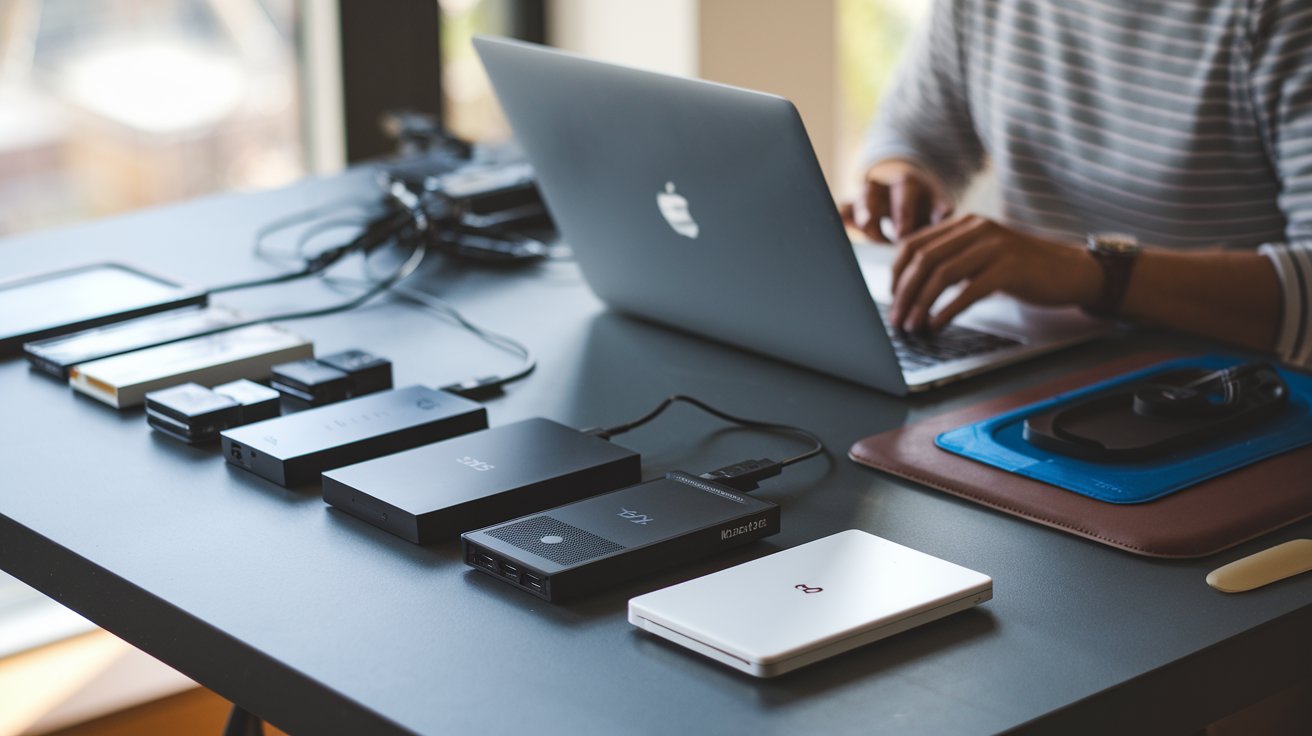
An external drive connects to your Mac and provides more room for files, backups, or large projects. It could be a hard drive, solid-state drive, or even a compact USB flash drive. For creatives working on video editing or archiving, large-capacity drives are ideal. For light users, smaller USB drives or memory cards are often enough.

But there’s more to consider than just capacity. You also need to check the port compatibility—USB-C, USB-A, or Thunderbolt. Transfer speed depends on the interface, so it’s best to match your Mac’s port type with a supported drive. Faster interfaces like Thunderbolt 3 or 4 can significantly speed up your workflow.

Why Thoughtful Selection Matters

A well-chosen external drive can make work smoother and less stressful. Imagine losing a week’s worth of progress due to an unorganized system. That’s avoidable with good habits and the right tools. Users working in creative fields, education, or even small businesses will find external storage useful—not just for extra space but also for better structure and protection.

Some industries require strict privacy policies. External drives with password protection or encryption provide extra safety. That’s especially useful when dealing with sensitive or confidential files, whether personal or professional.

Key Types of External Storage

Hard Disk Drive (HDD)

Budget-friendly and ideal for storing large collections of files

Slower performance and more fragile due to moving parts

Solid-State Drive (SSD)

Fast and reliable with no moving parts

Ideal for demanding tasks like video editing

Usually more expensive than HDDs

USB Flash Drive

Small and portable, perfect for quick file transfers

Lower storage capacity, but enough for basic needs

Memory Cards (SD or microSD)

Useful for transferring photos and videos from cameras

Limited capacity but highly convenient for specific tasks

Choosing Based on Your Work and Budget

Main Purpose

If you regularly work with video files or edit photos, an SSD offers better speed. But if your main concern is storing music or family videos, an HDD might do the job. Students or office workers often prefer USB drives for quick and easy file sharing.

Budget Considerations

HDDs are generally more affordable, making them a good choice for bulk storage. SSDs cost more but deliver faster performance. Review models and user feedback before making a decision.

Compatibility and Ports

Match your external drive with your Mac’s ports. A Thunderbolt-compatible drive can speed things up significantly. For USB-C users, make sure the device either supports USB-C or includes an adapter.

Security Features

If you’re carrying sensitive data, drives with encryption or password protection add an extra layer of defense. This is especially useful for travel or collaborative environments.

Everyday Stories and Practical Use

A student using a MacBook Air needed a place for thesis files and video presentations. With limited internal space, a 1TB HDD was a smart and affordable fix. It made file organization easier without breaking the bank.

Meanwhile, a photographer who works on the go preferred a portable SSD with Thunderbolt support. The fast transfer speed helped with quick editing sessions, and the durable build meant fewer worries during travel.

In an office setting, shared external drives streamlined the process of exchanging large documents. A good folder system and regular backups kept everything running smoothly.

Formatting and Using the Drive

After buying your external drive, format it correctly for macOS. Use Disk Utility to choose formats like APFS or Mac OS Extended for Mac-exclusive use. If you’re planning to share files with Windows, exFAT is a safe bet.

Built-in tools like Time Machine simplify the backup process. You can also explore third-party apps for advanced control, such as scheduling backups or selecting specific folders. Test the drive first by transferring a few files and checking read/write speeds.

Estimating the Right Capacity

Not sure how much space you need? Think about the types of files you handle. Text documents require very little space, but videos or audio projects consume a lot. It’s a good idea to buy a drive with more room than you currently need to prepare for future growth.

Some models offer 4TB or more, great for long-term archiving. But remember—higher capacity doesn’t always mean better performance, especially for HDDs. Balance is key.

Helpful Tips to Remember

  • Check release dates—newer models often bring better performance.
  • Handle HDDs with care—they’re sensitive to drops.
  • Look for warranties—a good backup plan includes reliable customer support.
  • Keep folder structures organized for easy access and retrieval.

How It Helps Across Different Fields

Creative Work

Editors and videographers often rely on SSDs for fast performance. Some even use RAID setups for higher capacity and better speed, though these can be more complex and pricey.

Business and Office

If you’re managing contracts or private financial records, an external drive with security features can offer peace of mind. It’s easier to carry data securely when traveling.

Education and Research

Teachers and students gather loads of research material. External storage helps them manage everything without clogging the Mac’s internal drive. It’s also useful during presentations or remote learning.

Personal Use

For many, storing memories is the priority—family photos, personal journals, or scanned documents. External drives let you keep multiple backups. A combination of physical and cloud storage ensures better safety.

Keeping Your Drive in Good Condition

Avoid dust and overheating. If you’re using an HDD, don’t place it near edges where it can fall. While SSDs are tougher, it’s still wise to store them properly.

Check your drive’s health using macOS disk utilities. If performance drops or errors pop up, back it up right away. Many users replace their main drive every few years to avoid sudden failure.

Differences Around the World

In regions like North America or Europe, SSDs are more common among creatives. These areas also tend to enforce strict privacy rules, pushing users toward encrypted drives. In contrast, many users in Asia still prefer HDDs due to affordability.

In places with slow or unstable internet, physical backups are often more reliable than cloud services. Offline storage becomes vital in these settings.

Using Built-In Mac Tools

Time Machine automatically backs up your system and files. If you ever need to restore a previous version, it’s all there—no hassle. For more detailed control, third-party apps can customize backup frequency and target folders.

Many prefer to keep two drives—one for everyday backups and another stored safely in case of emergencies.

Protect What Matters Most

Sometimes the files are worth more than the device itself. Losing important work due to a failed drive is a major setback. Enable encryption if you move data often. Mac users can use FileVault for internal drives and specific settings for external ones.

Just remember—never forget your encryption password or recovery key. Without it, you might lose access permanently.

Staying Ahead with Tech

Entry-level Mac models often come with limited storage. That’s why more users turn to external options. Faster data transfer technologies and smaller SSDs are becoming the norm.

Products specifically designed for Macs now come pre-formatted, which means you can plug them in and get started immediately.

A Final Reminder

Every Mac user has different needs. By choosing your external storage wisely, you gain a long-term partner for your digital lifestyle. From managing daily documents to handling large media files, having the right tool makes all the difference.

Spend a little time choosing the right storage solution. It helps you stay organized, avoid data loss, and handle any project with confidence—whether you’re at home, in school, or out in the field.

Find High-Quality PNG Images on Mac

Find High-Quality PNG Images on Mac

A refined interface transforms daily tasks into enjoyable routines. Visual elements contribute substantially to personal style while boosting workflow clarity on Mac systems. This piece explains practical methods to obtain striking graphics and explains a clever tip to explore creative ways to use Unicode and emojis on your Mac for further personalization. An emphasis rests on striking imagery and inventive touches that maintain balance without overloading the display.

Discovering Visual Essentials for Your Mac

High-caliber imagery creates a pleasing backdrop for routine tasks. Crisp graphics contribute to clear user interfaces and help define a personal environment. Quality images can shift focus, inspiring productivity while making every interaction feel less mundane.

In pursuit of refined visuals, one resource stands out. A valuable site offers detailed collections of
PNG files that suit varying tastes. Each option presents careful detail and clarity, ideal for integration into Mac setups.

A well-chosen graphic not only enlivens backgrounds but also boosts concentration. A well-planned mix of sharp visuals and subtle accents can redefine desktop experience. Subtle cues and well-placed icons lend a sense of order, ensuring that every window and widget aligns with an individual’s taste. Striking images capture attention without imposing on content or tasks.

Maintaining a clean interface is essential. Crisp imagery, when balanced with practical elements, helps users remain efficient. An eye for detail, combined with an understanding of personal preferences, leads to an environment that is both inviting and functional. A considered approach to selecting imagery also reinforces the Mac’s inherent design aesthetic, resulting in a workspace that feels both modern and personal.

Curating a Collection of High-Quality Images

A curated set of visuals can serve as a gallery that reflects personal style while offering practical solutions. A systematic approach to collecting images saves time and helps maintain consistency across the interface.

Sourcing the Best Visuals

Finding excellent images requires thoughtful examination. Resolution plays a critical role. High clarity ensures that graphics appear sharp across different screen sizes and resolutions. Individuals should check dimensions and pixel density to guarantee that each visual remains clear when scaled. A set of guiding principles helps in identifying images that match a specific aesthetic: look for balance, symmetry, and refined color schemes.

Numerous online collections provide various styles and themes. While specific websites remain unnamed, general searches yield plenty of collections free for use. Seeking visuals that complement Mac themes can create a harmonious atmosphere. Each image should possess a refined balance between simplicity and detail. Careful comparison and attention to small details help pinpoint visuals that stand out amid a sea of average options.

Critical thinking also plays a part. Those who inspect image properties, such as contrast and saturation, can decide which visuals work best with system backgrounds and icons. Consistency across multiple images creates a sense of unity, ensuring that every element on the desktop fits together seamlessly. A practiced eye can differentiate between an image that looks appealing on a phone and one that translates well to a larger monitor.

Organizing Your Visual Assets

A tidy collection of imagery simplifies daily customization efforts. Systematic storage enables quick retrieval and effortless updates. Users can create dedicated folders or rely on digital asset management tools designed for efficiency. Grouping images by style, resolution, or intended use streamlines the process, making it easier to locate the perfect visual when needed.

A reliable system involves establishing categories that reflect use cases. For instance, assign separate groups for backgrounds, icons, and decorative accents. Consistency in naming folders further aids retrieval. Keeping file names simple yet descriptive prevents confusion and saves time when selecting the ideal graphic.

Regular reviews of stored images help maintain an organized library. Over time, visual tastes may shift, prompting the need to add fresh selections and retire outdated ones. Digital tools can assist in tagging and sorting images, ensuring that the collection evolves along with personal style. A streamlined approach to organization means less time hunting for graphics and more time enjoying a personalized workspace.

Optimizing Images for a Seamless Mac Experience

Quality images require appropriate adjustments to function perfectly on various Mac models. Techniques for resizing, cropping, and refining ensure that visuals remain pristine on every screen. Without careful preparation, even the finest imagery may lose its intended impact.

Adjusting Resolution and Format

Adapting images to suit different screen sizes is an art. Users should aim for crisp presentation without introducing artifacts. Modern editing tools allow for simple adjustments. Maintaining a balance between quality and file size becomes paramount, as overly large files might hinder system performance.

Experts recommend saving images in formats that retain quality while ensuring efficient loading times. Techniques for reducing file size without sacrificing clarity include using lossless compression and selecting appropriate color profiles. Users can experiment with settings until they achieve a balance that fits their needs. The goal remains clear: graphics must retain their detail while integrating seamlessly with system components.

Many editing tools support batch processing, simplifying adjustments for multiple images at once. This approach saves time and maintains consistency across visuals. Ensuring that every graphic adheres to the same parameters helps avoid mismatches in clarity or style. A polished collection of images contributes to a unified and professional interface that complements the Mac’s design.

Customizing Visual Settings

Once images are optimized, a few straightforward steps allow for customization of the interface. Setting backgrounds, adjusting icon layouts, or choosing specific visuals for application panels can result in a refreshed look that boosts productivity. Each step should adhere to personal tastes, ensuring that the desktop remains both visually engaging and functional.

One strategy involves testing different arrangements to find a harmonious balance. A visual preference might favor a subtle gradient as a background paired with sharper icons for folders and applications. Adjustments in transparency and scaling help maintain focus on primary tasks. A flexible approach allows room for experimentation until the perfect combination emerges.

Technical adjustments may include aligning graphics with system settings. Matching color schemes and contrasts between images and interface elements creates a cohesive experience. Users might experiment with layering techniques to generate depth and a refined look. Such careful customization encourages an environment that feels handcrafted and thoughtful.

Implementing subtle transitions between visual elements adds a refined touch to the desktop. Smooth motion when switching between applications or viewing desktop backgrounds adds elegance without drawing undue attention. Regular tweaking and small changes can result in an interface that remains fresh and inviting. A considered approach to customization encourages continual refinement over time.

Practical Tips for Personalizing Your Mac’s Interface

Practical advice helps transform visual ideas into tangible improvements. Small changes can have significant impacts when integrated thoughtfully. Real-world examples illustrate how tailored tweaks contribute to a more engaging workspace.

Users often begin by reassessing current settings. An honest review of backgrounds, icons, and window styles may reveal areas ripe for improvement. By replacing outdated visuals with new selections from a curated library, one can create a more modern feel. Testing various arrangements during periods of low activity proves beneficial. Experimentation becomes key to finding the optimal combination.

Case studies provide examples of successful personalization. A freelance designer, for instance, might select soft, pastel backgrounds that ease eye strain while emphasizing functional elements. Another professional may choose bold, striking visuals that offer a clear division between workspaces. In both cases, careful thought and planning result in an interface that feels uniquely tailored. Real-world trials confirm that a few well-chosen visuals can transform everyday routines into pleasant experiences.

A focus on subtle improvements often yields the best outcomes. Minor adjustments to brightness or saturation can enhance visibility without altering the overall design. Regularly refreshing visual elements prevents monotony while ensuring that the interface evolves with current trends. Feedback from colleagues or personal observations can guide further changes, confirming that small tweaks sometimes lead to significant improvements in functionality and appearance.

Moreover, individuals must balance creativity with system efficiency. Heavy, high-resolution files might slow performance if not managed properly. It remains wise to test new visuals during periods of low usage. Through careful monitoring, users can gauge the impact on overall performance and make adjustments as needed. A measured approach allows customization efforts to blend seamlessly with everyday productivity.

Simple routines also prove effective in keeping the interface appealing. Establishing a schedule for refreshing visual assets not only keeps the desktop interesting but also introduces opportunities for discovering new styles. Regular updates ensure that the collection stays current with evolving tastes and technology standards. Combining practical tips with systematic organization leads to an interface that remains dynamic yet coherent.

Technical insights aside, creativity drives personalization efforts. A thoughtful blend of aesthetics and usability means that every image contributes to a broader narrative. Rather than overwhelming the display, subtle imagery supports tasks without distraction. Practical experiments with different visual arrangements often yield unexpectedly pleasing results. A refined approach to customization, when balanced with daily requirements, leads to a workspace that inspires ongoing productivity.

Visual personalization extends beyond backgrounds. Icons, cursors, and even window frames can adopt a consistent style. Experimentation with subtle color adjustments and minor shape changes results in an interface that feels both modern and inviting. Regular reviews of current selections, coupled with new additions, provide opportunities to refine the overall look. Users can adjust elements gradually, ensuring that each update contributes positively without risking disruption of workflow.

A commitment to continual improvement often results in an environment that mirrors personal growth. Each minor change reflects a journey toward a more satisfying and efficient workspace. The focus remains on simple, practical adjustments that yield noticeable benefits. With careful planning and periodic updates, users find that a personalized Mac interface becomes an extension of their own creative spirit.

Customizing Dock Settings on Mac

Customizing Dock Settings on Mac

Customizing Mac Dock Settings: A Smoother Workflow

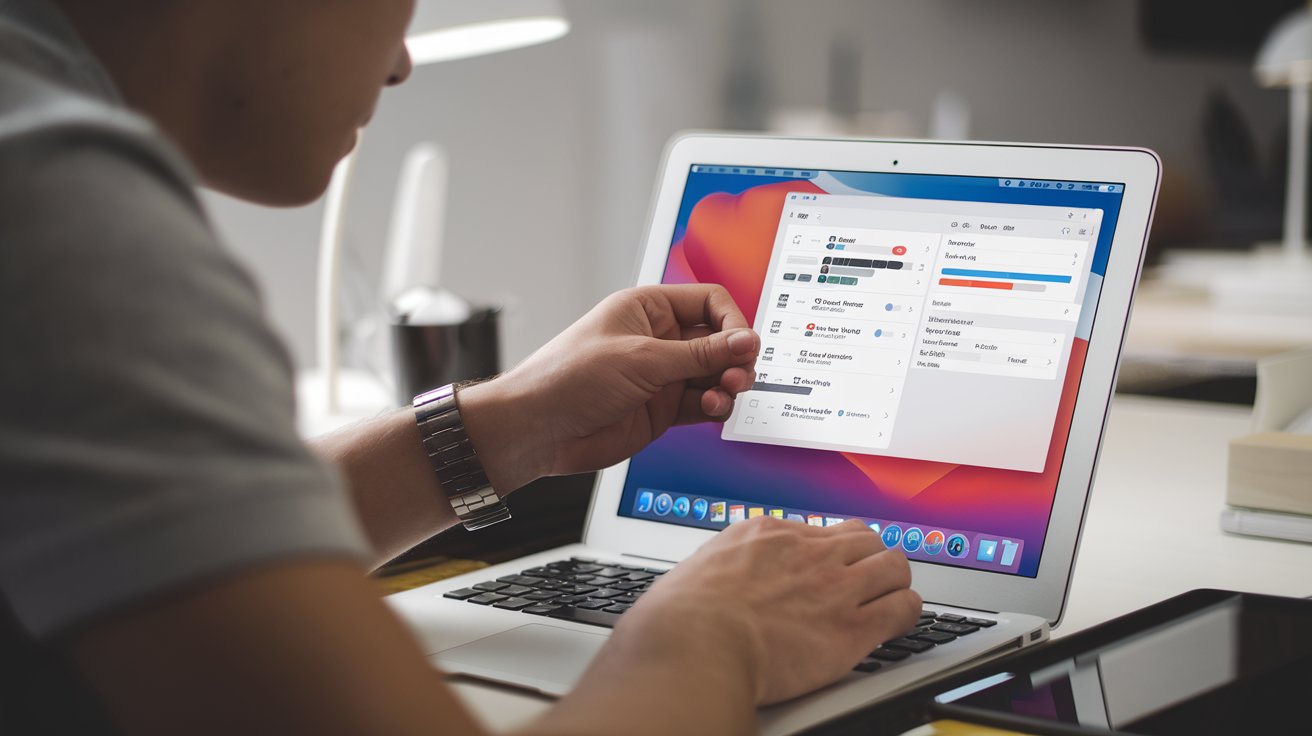
Mac users look for ways to make their daily tasks more comfortable and efficient. Whether you work on editing photos for an international project, finishing a presentation for a client abroad, or joining online classes, even small details like the look and location of your Dock can change how you work. Adjusting your Dock settings can help you tailor your workspace to suit your personal needs and style.

Setting the Dock’s Location

Many users find that the position of the Dock affects how quickly they can access their tools. Some prefer the Dock at the bottom of the screen because it is a familiar location. Others feel more comfortable when it is on the left or right side of the display.

To change the Dock’s location, follow these steps:

  1. Open the System Settings (or System Preferences if you use an older version of macOS).
  2. Find the section labeled Dock & Menu Bar.
  3. Look for the option labeled Position on screen and choose your desired setting: left, bottom, or right.

For instance, if you are a freelancer receiving varied projects from different parts of the world, fast access to your favorite tools is very handy. Choosing a location that makes your tools easier to reach can improve your workflow. Experiment with placing the Dock at the side or bottom and observe which position helps you work faster and with less strain on your eyes. Adjustments like these can create a work environment that feels more personal and efficient.

Think about the size of your screen. If you have a smaller display, moving the Dock to a side may free up more space. On a larger monitor, keeping the Dock at the bottom might let you see more of your work at a glance. Testing different placements for at least a week may reveal which layout best fits your daily tasks.

Adjusting Size and Magnification

The size of the Dock and its magnification effect are important factors in how you interact with your computer. Changing these settings can influence how clear and accessible your icons appear.

To adjust these settings:

  • Open System Settings and navigate to Dock & Menu Bar.
  • Find the Size slider and move it until the Dock reaches the size that feels comfortable.
  • Locate the Magnification slider. When you enable this feature, the icons near your mouse pointer become larger, making them easier to distinguish.

This is very useful for those handling multiple apps simultaneously. Large icons can help prevent mistakes when selecting the right app, especially during busy periods when you need to switch tasks quickly. Users working on tasks such as video editing or document processing may choose to turn off magnification for a cleaner view. However, if you rely on seeing clear icons, the magnification setting might be a useful aid.

Consider your own work style as well as that of people who share your computer. Some may appreciate larger icons, while others might prefer a minimalist approach. Try both ways to see what suits your needs best. A friend once shared that after switching the setting for a week, they felt more organized and less rushed while working on creative projects.

Adding Applications and Folders to the Dock

A key feature of the Dock is the ability to store your favorite applications and folders for quick access. This makes it simpler to jump into your work without having to search through multiple menus.

To add items:

  • Open the Finder.
  • Locate the desired app or folder.
  • Drag it to the Dock. Apps usually go on the left side, while folders are best placed on the right near the Trash.

For those working on projects across different time zones, having immediate access to important files can save valuable time. For example, if you frequently use a specific folder for project documents, adding it to your Dock allows you to open it with just a click. If you ever find that the Dock has too many items, you can easily remove unnecessary icons by right-clicking (or holding the Control key and clicking) and selecting the removal option.

Another helpful feature is the option to add a Stack. This creates a small grid or list from a folder containing daily documents or reference files. When you click the Stack, you can see and select a file without switching to another window. This function is particularly useful for users who deal with multiple file formats such as PDFs or images during busy work sessions.

Organizing Minimized Windows

Managing open windows is another key part of making the Dock work for you. The Dock settings offer options for how windows should minimize. There are two styles to consider:

  • Genie effect: This style shows the window sliding into the Dock with a unique animation.
  • Scale effect: Here, the window shrinks in size until it disappears into the Dock, offering a simpler look.

Some users say that the Genie effect provides a pleasant animation that adds charm to the work area. Others prefer the Scale effect because its simplicity helps them keep track of their tasks without extra distractions. The choice depends on how you want your computer to feel as you move from one task to another.

When many windows are open, keeping track of them can become challenging. Adjusting the size and animation of these windows can help keep your workspace orderly. One suggestion is to combine a smaller Dock size with the Scale effect, so you can quickly see all icons without a clutter of animations. This can be especially helpful during long online meetings when several documents and apps are open at once.

Practical Tips for a Better Dock

Many Mac users develop their own methods for organizing the Dock. Here are a few tips that might work for you:

  • Keep Only What You Use: Remove apps that you seldom use by dragging them out of the Dock.
  • Organize by Task: Group related apps or files into a folder and add it to the Dock for faster access.
  • Try Auto-Hide: Activate auto-hide to maximize screen space. The Dock will only appear when needed.
  • Select Your Preferred Animation: Choose the animation style that best fits your work rhythm.

Taking these steps can help you create an efficient desktop area. For instance, if you collaborate with people in different regions, having only the most needed shortcuts visible can prevent distractions. One user mentioned that by keeping the Dock tidy, they felt less overwhelmed when switching between various work tasks.

Personalizing Your Dock for Everyday Use

The beauty of the Dock is its flexibility. Changes you make today are not permanent, and you can adjust the settings as your work needs evolve. You might start by placing the Dock at the side of your screen during a period of high multitasking and later move it to the bottom when focusing on creative tasks.

Imagine you are preparing for a large video conference that involves screen sharing several documents and applications. By setting up your Dock to display only crucial items, you can ensure that everything is ready to go when needed. A friend once commented that a simple change in the Dock’s layout helped reduce the stress of switching between programs during important meetings.

Every little choice in your settings contributes to how easily you manage daily tasks. For those who work internationally or handle tasks for different projects, taking the time to fine-tune your Dock can lead to smoother transitions between activities. It is not only about aesthetics but also about finding the most comfortable and effective way to work on your Mac.

Adjusting for Different Workflows

Your work style, and that of your coworkers or family members, can influence how you set up the Dock. Here are a few points to consider when making adjustments:

Consider Your Daily Routine

  • Think about the apps you use in the morning and those used later in the day.
  • Identify folders you open frequently for work or study.
  • Adjust the settings based on how often you switch between tasks.

Experiment with Settings

Testing different positions and sizes over a few days can reveal what setup best suits your needs. Try changing one setting at a time to see how each change affects your productivity.

Share Your Ideas

If you share your computer with others, have a conversation about what works best for everyone. You might find that a shared setup leads to better teamwork and fewer interruptions when switching users.

Learn from Others

Sometimes learning about how others adjust their Dock can give you ideas for your own setup. Read online forums, ask friends, or watch short tutorials on customizing Mac settings. Such practical advice can provide new ways to improve your workflow.

A Final Note

Making small changes to your Mac Dock settings can have a big impact on your day-to-day tasks. This guide has provided simple steps to adjust the Dock’s position, size, magnification, and management of minimized windows. The goal is to help you create a workspace that feels natural and supports your work efficiently.

By testing and adjusting your settings, you will soon notice the difference in how you manage work tasks. Take your time to personalize each aspect of your Dock, and let the changes guide you toward a smoother and more comfortable workflow. Enjoy the process of making your workspace uniquely yours.

New Mac Hardware Announcements

New Mac Hardware Announcements

What to Expect from the Latest Mac Hardware Announcements

Every time Apple teases a new release, people start paying attention. Whether for work, creative projects, or daily tasks, the Mac has earned a global reputation as a trusted tool. From content creators to freelancers in Europe and professionals in the US, millions are curious about what’s next. The upcoming Mac hardware updates are no exception.

Why People Care About Mac Releases

Each update brings features that many professionals rely on. Faster processing, improved battery longevity, and small but useful upgrades help make everyday work more manageable. Whether you’re editing video, writing lengthy documents, or handling large image files, performance gains mean less time waiting and more time doing.

Mac fans worldwide often share their excitement online. Some rush to buy the latest model, while others prefer to wait and see. Either way, there’s always buzz in forums, social media, and workspaces. The tools people use matter, and for many, a Mac is more than just a machine—it’s a part of their routine.

Changing Tech and Faster Processors

Since Apple introduced its Silicon chips, MacBooks and desktops have seen serious improvements. The new hardware promises better speed with less power consumption. This helps users get more done on a single charge and run heavy apps without slowdowns.

Performance in Focus

Users across the globe are anticipating better integrated graphics, faster data handling, and more unified memory. High-resolution design work or video production could become easier and quicker. Tasks that once demanded an external GPU may now be handled internally with ease.

Some leaks suggest that newer models will support hardware-based machine learning. That’s useful for editing photos, writing with predictive text, or running smart apps—all without needing complicated setups. The chip itself is becoming the powerhouse behind a lot of creative and professional work.

Energy Consumption Matters

When laptops last longer without charging, it’s a win for anyone working on the go. Analysts say newer Macs could deliver better power management, which is good news for those constantly on the move. The shift also supports efforts toward reducing electronic waste and energy use. A smaller carbon footprint appeals to buyers who value sustainability.

Design and Display Improvements

Thinner and lighter bodies could make the next generation of Macs even more portable. Business travelers, students, and creatives often carry their laptops everywhere. Lighter models would be a welcome update.

How Displays Might Change

There’s talk of brighter screens, sharper images, and higher refresh rates. Designers, editors, and anyone who works with visuals would appreciate the upgrade. Better displays mean less need for external monitors and more accuracy during editing.

Higher quality displays may raise production costs, but the payoff could be worth it. For people working in film, photography, or gaming, crisp visuals can make a big difference.

Mac’s Ecosystem Keeps Growing

Macs don’t exist in a vacuum. They work seamlessly with iPhones, iPads, and Apple Watches. That connection could become even stronger, making it easier to switch between devices while working on a single project.

Third-Party App Development

As Apple pushes new hardware, more app developers are jumping in to optimize their software. That means fewer glitches, smoother updates, and more creative tools to explore. With hardware and software working hand-in-hand, users get a more dependable experience.

Updates on MacBook Pro and MacBook Air

MacBook Pro

This has always been Apple’s go-to for professionals. The upcoming model may come with a stronger graphics chip, more memory, and better thermal control. That would allow people to run demanding apps with fewer hiccups. A wider screen or thinner bezels could make it even more immersive. And if Apple adds more ports, that could win back users who need them for photography or video gear.

MacBook Air

Known for being slim and stylish, the Air might soon offer Pro-level speed in a lightweight package. Rumors point to better chips and longer battery life without sacrificing portability. It might even get new colors or finishes to make it more personal and fun to use.

Desktop Options: Mac Mini and iMac

Mac Mini

Not everyone talks about it, but the Mac Mini has its fans. It’s compact and budget-friendly, ideal for small offices or creative studios. Improvements in thermal design could make it even more capable of handling multiple tasks without overheating.

iMac

With its all-in-one setup, the iMac is popular for its clean look and solid performance. The next version may have a bigger screen, sharper visuals, and updated internal components. Many are hoping for better audio and camera features too, especially with the rise in remote work and virtual classes.

What Global Users Are Saying

People in the Philippines often chat with global communities about their Mac experiences. From smooth app switching to fast boot times, there’s plenty of positive feedback. In creative circles, the Mac’s reliability helps users focus on their projects without system issues getting in the way.

In design-heavy industries, Macs are preferred for their intuitive interface and visual quality. Tech professionals admire the hardware’s ability to handle complex tasks with stability. Whether editing a film or working on a startup, the Mac continues to play a vital role.

Where It Makes a Difference

Media and Entertainment

Macs power countless music, animation, and film projects. With support for top editing tools and stable software, they’re often found in production studios. Faster graphics and higher RAM options would help streamline creative work.

Education

In schools and universities, Macs are now standard in many programs. Long-lasting batteries and consistent performance allow students to focus on projects without constant recharging. More schools are investing in Mac labs, especially for design and programming.

Business and Professional Services

Many companies value the Mac’s security and minimal downtime. Its tight control on apps keeps malware at bay. Professionals in fields like law, finance, and marketing rely on its dependability for daily operations.

How Mac Stands Apart

Apple builds both the hardware and the software, which helps them offer a smoother experience. The ecosystem stays consistent across devices. That said, it’s not as flexible when it comes to upgrading parts. Repairs can also be expensive.

Still, plenty of people stick with the Mac because it simply works well. It offers power, elegance, and a trustworthy system in one package. Every announcement gives a glimpse of where Apple is heading—and that keeps people excited.

Strengths and Things to Think About

  • What Works Well
  • Long battery life, especially on laptops
  • Stable and clean operating system
  • Ideal for creative tasks like video or design work
  • Consider This
  • Higher price point compared to most PCs
  • Fewer options for upgrading parts
  • May take time to adjust if switching from Windows

Apple’s Strategy Keeps People Curious

The magic of each launch is in the details. Apple keeps fans guessing by revealing just enough to spark interest. Many admire how the company balances sleek design with practical function. The long product life and strong resale value only add to its appeal.

Discussions across forums ask if the price is worth it—and for many, it is. The device becomes a daily companion, helping people do more with less stress. Even users on a budget consider saving up for a Mac, simply because of what it offers.

Looking Ahead

There’s growing belief that future Macs will continue to improve in both speed and energy use. The system-on-a-chip approach could go even further, and more tools may appear to support immersive applications for creative professionals.

Gaming might also get more attention, especially if developers build more games for macOS. And in terms of accessories, Apple may introduce more custom-designed add-ons to match the updated machines.

For those curious about what the next Mac updates will bring, it’s shaping up to be an exciting season. Faster processing, cleaner interfaces, and better integration with other Apple devices are all expected. Whether you’re a student, a business owner, or just someone who wants a reliable laptop, the upcoming models could offer something valuable.

What matters most is finding the right fit for your lifestyle and workload. With many options on the horizon, it’s worth taking time to explore what’s best for you. These updates may just bring you closer to a setup that truly works for your day-to-day life.

Using Trackpad Gestures for Faster Navigation

Using Trackpad Gestures for Faster Navigation

Faster Navigation with Trackpad Gestures

Quick and smooth movement on a laptop matters more than people realize. Whether someone works in content creation, social media, or office settings, a fast workflow keeps productivity steady. It allows ideas to move naturally—without interruption—especially when every click counts. For many, the trackpad is now the primary tool, replacing the need for external mice or repetitive actions.

Interestingly, not everyone uses their trackpad to its full potential. Some gestures offer shortcuts that make daily tasks easier, yet these often go unnoticed. Even advanced users sometimes miss out on time-saving features that could make a difference. As more people work and study remotely, these gestures offer real support for getting through busy days.

The Comfort of Swiping Over Clicking

While some still prefer using a mouse, many appreciate the efficiency of the trackpad. There’s no need for sweeping arm movements or extra desk space. Most laptops today—whether MacBook, Windows-based, or Chromebook—have built-in trackpads, making these tools accessible to everyone.

What makes gestures appealing is their ability to remove friction. Swiping replaces dragging, and tapping often works faster than hunting for icons. These gestures work across various applications, from browsers to design software. Since most operating systems now include gesture support, it’s easier than ever to put them to use.

Where Gestures Make a Real Difference

In everyday work, gestures cut down on small delays. A quick swipe to switch windows. A gentle pinch to zoom. These little motions reduce the need to switch between mouse and keyboard constantly.

Use Cases Across Different Tasks

Students: Shift between reference material and papers with minimal effort.

Designers: Navigate large canvases without stopping to scroll manually.

Writers: Maintain flow by highlighting and editing text with a tap or swipe.

Freelancers: Switch tools quickly during presentations or client calls.

Each example shows how touch-based control allows tasks to stay in motion—especially when every second matters.

Widespread Usage Beyond Local Offices

These benefits aren’t limited to one place. International teams, remote employees, and digital creatives across industries all use gestures as part of their workflow. Many large companies even encourage portable setups, where gestures become the primary way to manage apps and multitask efficiently.

In response, developers continue to offer deeper customization. macOS allows fine-tuning of three- and four-finger actions, while Windows provides gesture settings in the Touchpad menu. Chromebooks also support basic motions like tap-to-click and two-finger scrolling. Regardless of the system, users can create a setup that suits their habits and needs.

Four Core Gestures That Help Most

  • Two-finger scroll: Swipe up or down to move through pages. Side-to-side scrolling is often available too.
  • Pinch to zoom: Spread two fingers to zoom in or pinch them together to zoom out. This is especially helpful when viewing images or small text.
  • Three-finger swipe: Quickly switch desktops or see open apps. It’s ideal for multitasking.
  • Two or three-finger tap: Customize these taps to function as right-clicks or open specific tools depending on your needs.

Pay Attention to Ergonomics

Functionality is essential, but comfort matters too. The trackpad supports natural movement—when used properly. Keeping your wrists in a relaxed, curved position prevents long-term issues such as muscle fatigue or wrist pain.

For this reason, many manufacturers provide usage tips that include posture reminders. Remote work setups, home offices, and co-working spaces all benefit when comfort is factored in. Good posture and mindful hand placement make daily sessions easier on the body.

Tailoring to Your Device

Adjusting gestures on your device takes only a few minutes.

On macOS, go to System Settings > Trackpad to view options. Windows 11 users can visit Touchpad settings under Devices. Chromebook owners will find gesture preferences under Device > Touchpad.

Each platform offers unique features. For example, three-finger swipes might trigger desktop switching on one system and app previews on another. Exploring these tools helps match them to the way you work.

Scenarios Where Gestures Shine

Practical Applications in Daily Life

  • Editing papers: Use a three-finger swipe to open your writing app. Scroll through notes using two fingers, and zoom in on feedback with a pinch.
  • Browsing design inspiration: View image galleries smoothly and adjust your view on the fly.
  • Managing browser tabs: Move between pages with ease while comparing resources or products.
  • Virtual meetings: Bring up meeting windows or reference documents without disrupting the call.

These tasks all become quicker and more fluid when gestures are part of the routine.

Personal Preferences and Adjustments

Everyone works a little differently. Some like inverted scrolling, others want faster response times. Thankfully, most systems allow these adjustments. Look for scroll direction toggles, touch sensitivity settings, or gesture options in your device’s control panel.

For advanced users, third-party apps like BetterTouchTool (Mac) provide even more control. These tools let you set custom gestures—such as opening specific programs or assigning keyboard shortcuts. Windows alternatives exist too, expanding the options even further.

Small Issues and Simple Fixes

Early mistakes are common. Tapping too softly or brushing the trackpad unintentionally might lead to frustrating results. To avoid these issues, users can adjust sensitivity levels and enable palm rejection settings.

A clean trackpad also makes a difference. Dirt and residue can affect how accurately the device responds. Take a moment to wipe the surface and check for firmware updates that improve compatibility.

Future Developments in Trackpad Tech

Manufacturers continue to improve gesture technology. From improved sensor precision to haptic feedback features, developers are exploring ways to make touch controls even more intuitive. In time, new materials may also enhance durability and responsiveness.

Beyond hardware, software is evolving too. Operating systems may soon offer more complex multi-finger actions or integrate machine learning to detect personalized gesture patterns. These innovations will support smoother, faster digital experiences.

Trackpad Use in Work and Learning

In education, teachers use gestures to present slides quickly or open related material during lessons. Students manage research, group work, and class notes with a few swipes. In medical environments, staff rely on gestures to check digital records swiftly, ensuring focus remains on patient care.

These are just a few cases where gestures reduce effort and allow professionals to do more in less time.

Real Boost in Focus and Productivity

The true benefit of gestures lies in how they reduce mental strain. When hand movements become automatic, the brain stays focused on content. There’s less time lost thinking about where to click or how to scroll.

As the habit builds, people find themselves getting more done with less friction. From first-time users to seasoned professionals, gestures support clear thinking and efficient multitasking.

Stories from Everyday Users

Students completing research projects say gestures save them hours every week. Freelancers handling multiple clients appreciate being able to switch between tools quickly. Business owners improve team output simply by teaching staff how to swipe and tap with purpose.

In creative industries, gestures provide a seamless way to jump from task to task. Teams who adopt this habit often notice an improvement in their workflow and energy levels.

A Handy Addition to Daily Routines

Trackpad gestures aren’t a replacement for every tool, but they complement many digital tasks. Whether you’re editing a spreadsheet, reviewing documents, or jumping between windows, they reduce interruptions and support a more natural rhythm.

When gestures are tailored to fit your work and practiced daily, they become second nature. They’re a simple, built-in tool with the power to transform how work gets done—one swipe at a time.

Setting Up File Sharing on Mac

Setting Up File Sharing on Mac

Why Setting Up File Sharing on Mac Is a Smart Move

For many Mac users around the world, being able to share files smoothly can make everyday life easier. Whether you’re sending photos to your family, sharing documents with a coworker, or moving files between your own devices, having a clear setup can reduce stress. When done right, file sharing improves communication and saves time—especially for people who work with others remotely or use multiple gadgets daily.

This feature goes beyond just home or office needs. From creative professionals to research teams, many benefit from a direct way to send files securely without relying on third-party platforms. A reliable file sharing setup gives you control and flexibility, whether you’re working on big client projects or simply organizing your personal digital life.

How File Sharing Makes a Difference

Mac computers offer built-in tools to help you send files without uploading them to the cloud. Many people find this useful because it keeps everything simple and within your control. You can choose which folders to share and who gets access.

For teams working from different places, this helps a lot. Compatibility problems become less of an issue, and you won’t need to use complicated tools just to send a single video or PDF. A well-set system removes barriers and improves workflow whether you’re part of a large company or doing freelance work.

Even for personal use, it can be useful. Imagine sharing photos with family or songs with friends without dealing with messaging limits or clunky email attachments. A simple folder setup can make all the difference.

Getting Started with the Settings

To begin, open your Mac’s System Settings or System Preferences (depending on your macOS version). Look for the section labeled Sharing. Inside, you’ll find several options like Screen Sharing or Printer Sharing—but the one you need is File Sharing.

Once you click on that, you can enable it by ticking a box. After that, the system will allow you to add folders you want to share. You also decide who can access each one and what they can do with it. For example, some users might only be allowed to view files, while others can edit or upload new ones.

Many recommend reviewing your permission settings carefully. If you’re working with people from different locations, it’s important to make sure sensitive data is protected while allowing access to necessary documents.

How to Connect Using IP Address

One of the key steps is finding your Mac’s IP address, especially if someone outside your local network needs to connect. On the same Wi-Fi, most devices will automatically detect your shared folders. But for remote access, additional steps like router configuration or using a VPN may be required.

In local networks, Macs will show up under the “Shared” section in Finder. Clicking on a shared device will ask for a username and password, depending on your settings. For Windows users, they can connect using an address like \\[Your-Mac-IP] or smb://[Your-Mac-IP]. The SMB protocol works across most platforms, which helps when sharing with non-Mac users.

Make sure your network is stable. If you’re planning to share files across countries or offices, it’s best to test your setup first.

Managing Permissions Safely

Some users worry about safety, especially when giving others access to their files. macOS offers three main levels of permissions:

Read & Write – full access

Read Only – view-only access

Write Only (Drop Box) – users can upload files but not view them

For tighter control, create specific user accounts. For instance, a guest account with limited access is safer for short-term collaboration. If you’re sharing sensitive files, consider encryption or creating user groups with restricted rights.

For global collaboration, it’s smart to create a unique login for each person or team. This makes it easier to track activity and adjust settings as needed.

Common Problems and Easy Fixes

While setup is usually simple, a few hiccups can happen. Sometimes, a Mac won’t show up in the network, or file transfers might be slow. To troubleshoot:

Make sure all devices are on the same Wi-Fi band

Enable SMB under File Sharing Options

Double-check firewall settings

Verify the username and password

If none of those work, restarting the sharing service can help. Most of these issues are solvable with a bit of patience.

Using Cloud and File Sharing Together

Some users prefer using cloud tools alongside local file sharing. If you work with clients overseas, apps like iCloud Drive, Dropbox, or Google Drive may offer extra convenience. You don’t have to choose just one—many find that a mix works best.

Also, Mac apps like Photos and Music have built-in ways to share files with others. For advanced users, services like SFTP or WebDAV can handle more secure, technical needs.

Staying Protected from Unwanted Access

Even with strong systems like macOS, safety still depends on you. Avoid turning on File Sharing unless needed. If you give someone access, schedule it and disable the feature afterward.

Always use strong passwords. Avoid simple ones like “123456.” Mix letters, numbers, and special characters. Also, keep your macOS updated so you benefit from the latest security patches.

A good habit is reviewing your settings every few months. Delete old user accounts and check who still has access.

Real-Life Example: Family and Business Use

Imagine a family wanting to share reunion photos. One person enables File Sharing on their Mac, creates a folder with view-only access, and shares the login details. Everyone else can download the images easily—no need to use social media or large email attachments.

Now picture a small design studio with remote artists. Instead of sending huge design files through email, they use a shared folder. Any updates appear instantly for the rest of the team. This helps meet tight deadlines without relying on outside platforms.

Tips for Organizing Shared Files

Clear folder structure makes a big difference. If you’re working on multiple projects, group them into named folders. For example:

  • Project A
  • Design Files
  • Client Feedback
  • Final Versions

Use clear filenames with dates or version codes. This avoids confusion, especially if you’re working with others in different time zones.

Simple organization saves time and keeps things professional.

What to Do When Upgrading Your Mac

If you’re moving to a new Mac, don’t worry—your file sharing settings can transfer too. Use Migration Assistant to move data. Once restored, most of your preferences will still work.

Take this chance to clean up old files. Delete folders you no longer need, or archive them. A tidy system makes future sharing easier and safer.

Speeding Up Transfers

File sharing can slow down, especially over Wi-Fi. For faster transfers:

Use wired Ethernet instead of wireless

Check your router’s capabilities

Adjust antivirus/firewall settings to avoid slowdowns

Even your internet provider’s network traffic can affect performance. If you often transfer large files, a direct connection works better than Wi-Fi.

Building Advanced Sharing Skills

You can take file sharing to the next level by turning your Mac into a mini server. Tools like macOS Server (or third-party apps) allow advanced setups with user controls, permissions, and custom sharing features.

Some prefer SFTP for secure access, while others use WebDAV for browser-based access. Choose what fits your workflow best.

Keeping It All in Check

Once you’re comfortable with File Sharing, it becomes part of your daily routine. Still, it’s smart to check your setup after each macOS update. Review who has access and clean up folders from completed projects.

Also, always keep a backup—whether it’s with Time Machine or another tool. If something ever goes wrong, you won’t lose your important files.

Helping Others Learn the Basics

If you’re familiar with Mac, show others how easy this can be. Walk them through the steps—selecting folders, setting permissions, and sharing the IP address. This gives them confidence and shows that it’s not as complicated as it seems.

When users see that problems can be solved, they’re more likely to explore and use the feature regularly. A little support can go a long way.

Knowing how to properly set up File Sharing on your Mac brings many advantages. It allows better control, strong security, and smoother collaboration—whether you’re working, studying, or simply staying connected with loved ones.

Installing Adobe Creative Cloud on Mac

Installing Adobe Creative Cloud on Mac

Getting Started: Installing Adobe Creative Cloud on a Mac

Mac devices are a favorite among users around the world—whether you’re a beginner or a seasoned content creator. Many see it as a reliable platform that combines convenience with stylish design. Because of this, more people are turning their attention to Adobe Creative Cloud—a wide collection of apps that help you create and edit graphics, videos, and other types of media.

Finding the correct way to install it is a must, especially if you want everything to go smoothly and securely. While there’s no shortage of information online, it helps to have a clear and easy-to-follow guide. Adobe Creative Cloud supports a global community of Mac users, which makes it a trusted tool for a wide range of creative projects—big or small.

From Asia to Europe to the Americas, many content creators rely on Adobe Creative Cloud. Designers, editors, and marketers often view it as a long-term solution for their creative work. Let’s break down how to install it properly on a Mac and what makes the experience worth it.

Why It’s Popular Among Mac Users Worldwide

It’s not just professionals in design or photography who benefit from Adobe apps. Everyday Mac users find them helpful too—whether for creating simple artwork, editing personal photos, or crafting attention-grabbing social media content.

Students trying their hand at graphic design, vloggers searching for advanced editing tools, and small business owners building marketing materials—all find value in the Mac and Adobe combo. Since many of these tools are recognized globally, they open doors to opportunities in different industries.

The software is widely used in international companies, which means your portfolio can make a stronger impression. Adobe also has a large, active community that’s always ready to share advice and creative ideas.

Things to Check Before You Install

Before jumping into the download, make sure your Mac is ready by checking the following:

  1. macOS Version
    Your system must be compatible with the latest version of Adobe Creative Cloud. Go to the Apple menu, click “About This Mac,” and check for available updates.
  2. Storage Space
    Make sure there’s enough room for the installer and the individual apps like Photoshop, Illustrator, and Premiere Pro. If your drive is too full, transfer some files to an external drive or do a quick clean-up.
  3. Stable Internet Connection
    Since you’ll be downloading large files, make sure your internet is reliable. Interruptions may lead to incomplete or corrupted downloads.
  4. Adobe Account
    If you don’t already have one, sign up on Adobe’s official website. It’s free and needed to access Creative Cloud and its apps.

By doing these steps early, you can avoid unnecessary delays or errors. Many Mac users around the world recommend prepping beforehand to make the process smoother.

Step-by-Step Installation Guide

Once your Mac is ready, head over to Adobe’s official site. Look for the Creative Cloud section and download the installer that matches your system. It might take a few minutes, depending on your connection.

Open the Installer File: Double-click the downloaded file and follow the instructions. Usually, you’ll see the Creative Cloud app asking to be dragged into the Applications folder.

Launch the App: Open it and log in using your Adobe account. You’ll notice a loading screen while the interface gets set up.

Select the Apps You Want: Inside the Creative Cloud panel, choose from the available Adobe programs like Photoshop, Premiere Pro, Illustrator, InDesign, and more. Trial versions are also available if you’re not subscribed yet.

Click “Install”: Pick the apps you need and start the download. Installation time depends on your internet speed and the app size.

Wait for the Setup to Finish: Once installed, you’ll find the apps in your Applications folder or directly through the Creative Cloud interface.

The process is straightforward as long as you take the time to prepare. Many users say it’s well worth the effort once you start using the tools included in your plan.

Activating Your Subscription

Opening an app like Photoshop will prompt a login to confirm your active subscription. If you have a plan, the full version launches immediately. If you’re on a trial, it will show how many days are left.

Adobe also sends reminders before your subscription expires. You can manage your billing or change plans through your Adobe account settings anytime.

Why It’s Worth It: Real-World Benefits

Young artists worldwide use Photoshop and Illustrator to practice their digital skills without needing costly classes. Many learn through free tutorials and stay connected with online communities.

In video editing, apps like Premiere Pro and After Effects are often used for vlogs, short films, and marketing projects. With high demand for polished video content, creative freelancers often land international collaborations.

Recognized Worldwide

Adobe is trusted by both freelancers and large organizations. Using it adds credibility to your work since clients are familiar with the platform. Many professionals find it easier to showcase their portfolio because the quality is easy to recognize.

Common Problems and Quick Fixes

Here’s one bullet list to simplify some issues users often face—and what to do about them:

Slow Downloads
Fix: Use a faster connection or close other apps that consume bandwidth.

Login Errors
Fix: Restart the Creative Cloud app, double-check your login details, or wait if there’s scheduled maintenance.

Not Enough Disk Space
Fix: Free up storage or move files to an external drive or cloud service.

App Crashes
Fix: Keep both macOS and Creative Cloud updated. If problems persist, reinstall the specific Adobe app.

These problems don’t have to stop your progress. Adobe’s help center and user forums often provide detailed instructions for most issues.

Real Stories from Creative Users

Let’s take a look at how people from different places use Adobe Creative Cloud successfully:

  • A new vlogger in the US said her channel looked more polished after learning Premiere Pro. She practiced regularly and saw a big difference.
  • A freelance designer in the Philippines landed a client from Europe. He used Illustrator and Photoshop to deliver a complete brand identity package, getting great feedback despite time zone differences.
  • A creative agency in Australia uses Adobe daily. Since their team shares the same software versions, file sharing and teamwork are more efficient.

No matter where you’re located or what language you speak, Adobe helps creators connect and work together seamlessly.

Adjusting the Workspace to Suit You

Once Creative Cloud is installed, you can customize the layout of each app. In Photoshop, for example, you can move panels around. In Illustrator, you can add custom shortcuts to save time.

This flexibility is a favorite among users, since not all software allows this level of personalization. Adobe also supports multiple languages, making it accessible across borders.

Cost Planning and Subscriptions

Keeping a subscription means planning your budget. Adobe offers monthly and annual billing, so you can choose what fits you best. Students often get a discount to make the service more affordable.

Many organizations also take time to evaluate whether Adobe Creative Cloud fits into their workflow. Some choose only specific apps, like the Photography Plan, which includes Lightroom and Photoshop.

Pro Tip for Learning More

Once you’re familiar with one app, try experimenting with others. If you’re good at Photoshop, consider learning InDesign for print layouts or After Effects for animation. Broadening your skills can increase your value as a freelancer or employee.

Training Resources from Around the World

Adobe Creative Cloud stands out because it keeps evolving. They regularly introduce new features based on global user feedback.

There are also plenty of learning platforms available—some free, some paid. YouTube videos, tutorials, and online courses in various languages help users stay up to date. Whether you’re a hobbyist or a full-time creative, there’s always room to learn.

Thanks to global access and learning tools, even beginners can land international gigs. The most important thing is to stay patient and keep practicing.

Advice from Fellow Creators

Beyond the technical side, your mindset also matters. Success in creative work often comes from a mix of curiosity and persistence.

Do you want to become an expert photo editor?

Interested in making short films or music videos?

Want to design brochures and infographics?

The variety of apps in Creative Cloud lets you try many paths. You can specialize in one area or explore several, depending on your goals.

Social media and online workshops also make it easier to connect with other creatives. There are webinars across different time zones, so it’s easier to join learning sessions wherever you are.

Adobe Creative Cloud remains a dependable partner for Mac users. From setup to daily use, it supports your growth—whether for art or business. While tools and technology may change, being open to learning helps you stay ahead.

If you’ve overcome the early hurdles, you’ll enjoy the benefits of a solid creative suite that makes your work shine. With preparation and steady effort, the results can be deeply satisfying. At the heart of it all is your drive to grow, learn, and collaborate—and Adobe Creative Cloud makes that possible, no matter where you are in the world.

Review of New Mac Peripherals

Review of New Mac Peripherals

A Closer Look at Mac Peripherals That Improve Your Daily Workflow

Mac peripherals play a major role in shaping how users experience their devices every day. Whether you’re working remotely, creating content, or managing everyday office tasks, the right accessories can improve comfort, efficiency, and performance. These tools go beyond appearance—they help you get things done faster and with fewer frustrations.

Mac users around the world are always on the lookout for peripherals that fit their needs. Keyboards, mice, trackpads, and stylus tablets might seem simple, but they affect how smooth and comfortable your daily routine feels. The challenge is knowing which ones offer the best value.

How Mac Peripherals Matter Around the World

In the U.S., ergonomics often matter most, with long desk hours making comfort a priority. In Europe, people care about long-lasting builds and quality assurance. Meanwhile, in Asia’s growing freelance scene, efficiency and portability come first.

What makes Mac peripherals so important is their ability to match specific user needs. Some prioritize speed, others want quiet performance, and many care about long battery life. With official Apple accessories and a growing number of third-party tools, there’s no shortage of options.

Reviews from across the globe show that users value performance over branding. Compatibility, reliability, and real-life use cases often make or break a purchase. Whether it’s a keyboard with a preferred layout or a mouse that fits just right, the best choice depends on your personal setup.

Keyboards and Mice for Every Type of User

One of the most common upgrades for Mac users is the keyboard. The Apple Magic Keyboard remains popular for its slim look and smooth integration with macOS. It’s lightweight, easy to use, and available with a backlight—ideal for late-night work sessions. While many praise its quiet keys, others want the tactile feel of mechanical switches.

That’s where brands like Keychron and Logitech come in. These offer wireless mechanical keyboards in different switch types, letting users choose based on how they like to type. It’s a small change that makes a big difference in comfort and typing speed.

For mice, the Apple Magic Mouse is loved for its sleek design and gesture support. But users needing more buttons or better ergonomics often go for the Logitech MX series. It’s great for those who switch between multiple devices or need added control for tasks like video editing or design.

Affordable alternatives are also growing in popularity. While lesser-known, some deliver solid performance, quiet clicks, and impressive battery life. Watching demo videos or reading reviews from international users can help you decide which one fits your routine.

Trackpads, Tablets, and Other Essentials

Some users prefer the Magic Trackpad over a mouse for its gesture control and smooth navigation. Designers and editors appreciate how it makes zooming and scrolling more intuitive. Though it comes at a higher cost, the seamless feel with macOS gestures is a strong advantage.

Stylus tablets, such as those from Wacom or XP-Pen, are perfect for artists and photographers. These tools offer more control for tasks like retouching or illustration. macOS supports many of these brands, though some may need driver adjustments during setup.

For those who like more freedom, compact wireless keyboards pair well with tablets and trackpads. This setup is often seen in small workspaces or travel environments where space is limited.

Why Comfort and Ergonomics Matter

Ergonomics is more than a buzzword—it’s a way to avoid long-term strain and discomfort. Some keyboards are designed with a split layout or curved design to support a natural wrist angle. Vertical mice reduce pressure on your arm and allow for longer, pain-free sessions.

Global offices now include ergonomic tools in wellness programs. The idea is simple: a better workspace leads to better work. While these tools aren’t as common in every region yet, they’re gaining popularity with people who spend hours at their desks.

If you’ve been experiencing wrist or shoulder tension, upgrading your Mac peripherals might help more than you’d expect.

Work Smarter and Play Better

For creatives and professionals alike, Mac devices are often a central part of the job. Editing videos, writing code, or managing spreadsheets becomes easier with responsive peripherals. Some keyboards and mice come with shortcut features or customizable buttons that save time on repetitive tasks.

Gaming on Mac is also possible, and some users turn to gaming mice or external controllers for smoother play. Compatibility with Bluetooth 5.0 or wired connections ensures lag-free performance. High-DPI mice and mechanical keyboards built for gaming are now optimized for macOS, making them a fun, functional addition to your workspace.

A Few Recommended Setups

Clean and Simple: Apple Magic Keyboard + Apple Magic Mouse

Mechanical Fans: Keychron or Logitech Keyboard + MX Mouse

Creative Work: Magic Trackpad or Wacom Tablet + Compact Keyboard

For Long Hours: Ergonomic Split Keyboard + Vertical Mouse

Don’t Overlook Global Support

Choosing a well-supported brand means help is available when something breaks. Apple and Logitech have international service centers, making it easier to get repairs or replacements no matter where you are.

If you go for a smaller or budget brand, check for warranty coverage in your country. Some users have shared stories about delayed responses or unavailable parts. That’s why looking into real customer experiences can guide you toward a smarter purchase.

Durability and Price: What to Know

Everyone has a different view of what makes a product “worth it.” Some want a budget-friendly tool they can replace after a year or two. Others are ready to invest in premium gear that lasts much longer.

The Apple Magic Keyboard and Magic Mouse often sit on the pricier end. Mechanical keyboards range from mid-level to high-end, depending on build and switch type. Mouse features like DPI control or multi-device switching also affect pricing.

When in doubt, check what other users say—especially about wear and tear after months of use. These real stories often tell more than tech specs.

Global Feedback Adds Value

Reading reviews from different parts of the world gives a fuller picture. U.S. reviewers often focus on ease of use and comfort. European users care about build quality and return policies. In Asia, portability and easy setup top the list, especially for freelancers and students.

Forums like Reddit and MacRumors offer detailed discussions. People share how they manage dual-monitor setups, small desks, or demanding creative work using Mac peripherals. These stories can help you decide what setup will fit your daily routine.

Smart Usage Tips

To keep your Mac peripherals in great condition:

  • Clean your keyboard and mouse regularly
  • Use compressed air to remove dust
  • Recharge or replace batteries on schedule
  • Check language compatibility for keyboard layouts
  • Verify that driver software works with macOS

Even small habits like wiping down your gear or storing it in a clean drawer can add months to its lifespan.

Designed for Global Use

Manufacturers now offer global shipping and multilingual support. Some accessories even come with international warranties, which is useful for travelers, remote workers, or students studying abroad.

macOS has also improved its compatibility with third-party brands, so you’re not limited to official Apple accessories anymore. Whether you’re using Keychron, Logitech, or another trusted name, setup is smoother and more flexible than before.

The best part? You can build a Mac setup that’s truly your own—without spending too much or settling for less.

Mac peripherals aren’t just about style—they’re about creating a better experience. By picking tools that match your habits and goals, you’ll enjoy more comfort, faster workflows, and better results.

Wherever you are in the world, the right gear helps your Mac do more—whether you’re working, creating, or just enjoying your time in front of the screen.

Tips For Secure Passwords on Mac

Tips For Secure Passwords on Mac

Mac systems deserve careful attention when safeguarding digital identities. Secure password management goes beyond routine logins; weak credentials expose sensitive data and invite unwanted breaches. Robust strategies, smart tools, and thoughtful practices work together to minimize vulnerabilities. Users benefit from building a solid security framework that weaves together advanced methods and system-specific features. Along with advice provided here, consider using an online password generator exactly once for a one-time boost in password complexity. For those curious about handling media safely, click here to securely manage your media files with our HEIC conversion guide.

Establishing a Strong Foundation for Password Security

Mac environments naturally incorporate several safeguards, yet user diligence remains central. Long, unique strings play a pivotal role in resisting intrusions. Weak phrases or common terms expose systems to risk, inviting brute force attempts and social engineering. Unsound practices may include recycling phrases across multiple accounts or relying on easily guessable sequences. Instead, evaluate existing credentials with honest reflection. Conduct thorough audits of current security habits; identify repetition, simplicity, or outdated practices. Users accustomed to routine habits may find that upgrading security methods sparks renewed interest in digital protection.

Advanced users and newcomers alike have much to gain by embracing length and unpredictability. Experiment with uncommon characters and punctuation marks that deviate from personal interests. Strive for diversity among letters, numbers, and symbols. Although complexities may feel overwhelming initially, incremental improvements fortify overall defenses. Combine system-provided tips with personal insights to create a layered approach. As security measures improve, so does confidence in daily operations.

Essential Techniques for Crafting Secure Passwords

Creating resilient credentials requires mindful effort. Every character inserted into a password contributes to overall strength. A mix involving uppercase, lowercase, digits, and symbols frustrates attempts at unwanted entry. Resist temptations to mirror familiar words; rely on phrases that hold no obvious connection to personal history. Instead, consider fragments from literature, movies, or abstract concepts. An inventive mindset turns an ordinary sequence into a formidable barrier.

In constructing phrases, attention to length matters. Aim for credentials that extend well beyond standard minimums. Longer strings require intruders to invest time and computing power when attempting to breach defenses. With sufficient variability, even modern cracking tools hesitate. No simple formula guarantees perfection; rather, iterative testing and continuous refinement yield effective results. Users should feel encouraged to experiment until comfort emerges with the final version.

Many experts recommend a passphrase approach, combining unrelated terms into a single fluid sequence. Transform familiar expressions into coded references by substituting numbers for select letters or altering order. This technique not only adds complexity but also preserves a degree of memorability. In practice, these methods provide a balance between ease of recall and resistance to compromise. Trust personal intuition and remain open to revisiting strategies when new challenges arise.

Leveraging Mac Security Features and Third-Party Tools

Mac systems incorporate utilities designed to bolster security, and integrating these features enhances overall protection. Keychain Access, for instance, stores sensitive details safely while permitting easy retrieval when necessary. This native feature offers an effective starting point, especially when paired with personal encryption routines. Regular maintenance of such applications ensures they remain current with software updates and security patches.

External solutions add another layer of control, offering unique interfaces and expanded functionality. While system features deliver basic defense, third-party applications often include advanced analysis and monitoring. These tools may track credential changes, alert users to potential breaches, or automate updates. Seamless integration into daily routines minimizes disruption while optimizing digital safety. Whether one prefers native options or external applications, each method contributes to a holistic security plan.

Adopting new technology requires careful evaluation. Examine reviews, consider expert opinions, and test trial versions before committing. A thoughtful approach avoids pitfalls and emphasizes long-term protection. Users benefit from comparing multiple options; a personalized selection process yields results tailored to individual needs. Balanced integration of system features with external tools leads to greater flexibility and improved security overall.

Best Practices for Ongoing Password Management

Consistent vigilance over credentials ensures defenses remain robust. Routine updates and careful recordkeeping help track changes, minimizing the chance of outdated phrases lingering in use. Regular audits reveal redundancies and expose potential threats before malicious activity takes hold. Maintain a schedule for checking and revising security details, particularly when sensitive operations occur.

Adopting multifactor authentication further secures access points. Combining passwords with additional verification methods creates extra obstacles for potential intruders. Such practices reduce reliance on any single line of defense. Users who schedule periodic revisions create a habit that reinforces good security habits. Although convenience may seem enticing, temporary shortcuts often lead to lasting problems.

Balance remains key in maintaining a seamless workflow while upholding strong defenses. System prompts, security alerts, and password managers may all contribute to ongoing success. A mindset geared toward incremental improvements helps users stay ahead of evolving threats. Remain open to modifications and new routines that reflect emerging challenges. Over time, consistent management transforms security practices into an ingrained habit, significantly reducing risks.

Optimizing Overall Mac Security Through Effective Media Management

Media files represent another facet of digital protection often overlooked. Sensitive data stored within images, videos, or documents may expose details if handled carelessly. Effective media management reduces risk by ensuring sensitive content remains organized and protected. Adopt practices that restrict file sharing, organize documents securely, and maintain control over sensitive materials.

A broader security strategy embraces every element of the system. Coordinating password practices with media safeguards creates a comprehensive barrier against intrusions. Users benefit from regular reviews of digital storage, ensuring that access permissions and encryption settings remain current. Routine maintenance of file repositories contributes to overall system health, limiting the scope of potential breaches.

Techniques employed for password management find parallels in media organization. Complex passphrases compare to multifaceted file naming conventions that deter casual browsing. Thoughtful categorization and controlled access combine to form a secure framework. Incremental improvements in either arena contribute to overall digital resilience. Over time, integrated strategies produce noticeable differences in system performance and security.

Maintaining organized media practices also frees up resources for other security measures. Proper file management minimizes clutter, allowing system tools to operate more efficiently. With fewer extraneous details to process, security software focuses on genuine threats. Users who streamline their digital libraries create an environment where both media and access controls perform optimally.

Sophisticated strategies blend technical features with user awareness. Consistent care over media files aligns with rigorous password practices to form a unified defense system. This comprehensive approach ensures that every aspect of a Mac system receives necessary attention, fostering a safer digital experience for all users.

Changing Desktop Backgrounds on Mac

Changing Desktop Backgrounds on Mac

Changing Your Desktop Background on Mac: A Simple Guide with Everyday Impact

If you spend hours on your Mac—whether for work, school, or relaxing—it’s natural to want your screen to reflect a bit of your personality. Your desktop background isn’t just a decorative feature. It can shape your mood, boost your focus, and even serve as a little reminder of things you care about. From digital artists to teachers running online classes, people across the world use their Mac desktops not only to stay productive but also to feel connected and inspired.

Changing your desktop wallpaper might seem like a small thing, but it plays a bigger role in how you interact with your computer. The process is simple, and the results can be surprisingly refreshing.

Why Your Desktop Background Matters

Everyone has their reasons for customizing their desktop. Some choose calming landscapes to ease the stress of a busy day, while others go for bold artwork to fire up their creativity. A photo of the mountains can create a sense of peace. An abstract design from a favorite artist might encourage you to think outside the box. These little touches can give your workspace more energy or serenity—depending on what you need.

macOS offers several options for adjusting your wallpaper. Whether you’re using System Preferences or the newer System Settings layout, it’s easy to explore what’s available. Built-in images, personal albums, or even dynamic wallpapers that shift with the time of day are just a few taps away.

How to Change Your Desktop Background

Switching things up is easier than you might think. Here’s a quick way to do it:

  1. Go to System Settings (or System Preferences, depending on your macOS version)
  2. Click Desktop & Screen Saver
  3. Choose from Apple’s built-in images or select from your own photo albums

You can also fine-tune the way your image displays—whether it’s centered, stretched, or fills the screen. And if you prefer a subtle look, a solid color might suit you better.

One List to Keep in Mind

Here are three things to check when setting up your wallpaper:

  • Image Source: Use Apple’s default gallery or select from your own photo collection
  • Layout Settings: Adjust how the image fits your screen (fill, fit, stretch, center)
  • Dynamic Options: Try wallpapers that shift with the time of day for added variety

These choices let you mix practicality with self-expression. Whether you want a neat, distraction-free look or something more expressive, there’s an option that fits your style.

Real Stories from Around the World

One designer in Europe changes his desktop background based on his current project. For technical tasks, he sticks to minimal geometric designs. But when he’s working on something more artistic, he switches to colorful, energizing themes. He says it helps him stay focused and inspired.

In Asia, a teacher running online classes prefers pastel backgrounds. They’re easier on the eyes and don’t distract from her students. When she’s feeling tired, she adds a photo of mountains as a gentle reminder of relaxing vacations.

These stories show that no matter your profession, the right desktop background can support your daily goals—whether that’s productivity, creativity, or a bit of calm.

Tips to Make It Work Well

Using a high-resolution image helps your background look sharp and clear. For Macs with Retina display, try using large, high-quality images. Some people want to use Live Photos or animated backgrounds, but macOS doesn’t always support these directly. In that case, third-party apps might offer more options—but be sure they’re safe and reliable.

For simpler methods, right-clicking on a photo and selecting “Set as Desktop Picture” is another quick trick. You can preview how it will look, too, which helps avoid awkward cropping or stretched images.

Wallpaper Preferences in Different Cultures

In various regions, users express their identity through desktop design. Traditional art and calligraphy are common in parts of Asia, while minimalist themes or cityscapes are popular in Western countries. Some go for spiritual symbols or images that align with special events like holidays and festivals. These choices often carry meaning that reflects the user’s background or current mood.

Choosing Images That Are Easy on the Eyes

If you’re working long hours, the right background can reduce eye strain. Bright or overly detailed images may be tiring after a while. Soft colors or pastel tones can help your eyes relax. For nighttime users, darker themes are often more comfortable and can help with focus.

Still, everyone’s different—feel free to test what works best for you.

Boosting Organization and Focus

Some Mac users choose backgrounds that help them stay on track. These might include gentle grid lines, motivational phrases, or personal photo collages. These little touches can help you remember your goals or stay calm during a packed schedule.

Also, keep in mind whether others might see your screen—especially during video calls or shared presentations. Some users schedule automatic background changes every few hours to keep things feeling fresh.

Get Creative with Layouts

Playing with how an image is framed can make a big difference. A centered photo with a neutral border can look neat and artistic. Online forums and Mac user groups often showcase creative setups. You’ll find screenshots with creative icon placement, subtle widgets, and personalized themes.

Whether you prefer simplicity or bold designs, these communities are a great source of inspiration.

Ideas for What to Use

Here are some easy themes that many users enjoy:

Minimal Patterns: Perfect for clean, organized setups

Nature Scenes: Mountains, oceans, and forests bring calm

Abstract Designs: Bright and expressive for creative energy

Solid Colors: Simple and distraction-free

You don’t need a big collection—just one image that speaks to you can make a difference.

How It Affects Productivity

A well-chosen wallpaper can help keep your attention where it matters. Clean designs make it easier to find icons. But for creative work, a visual boost—like a personal photo or a quote—can spark motivation. The key is balance. Too much detail may clutter your view, but a flat, dull image might not lift your energy either.

Those working in visual fields like design or content creation sometimes use collage-style desktops as mood boards. These visuals guide their process and add focus.

If Something Doesn’t Work

Occasionally, wallpapers might not display as expected. Here’s what to check:

Make sure the image is in a supported format like JPG or PNG

Confirm that the file has the correct permissions

If the problem persists, restart your Mac or check for software updates

Most wallpaper-related issues are minor and easily solved with a little troubleshooting.

Adding a Personal Touch

Some people treat their desktop like a tiny art gallery. Gamers use screenshots from their favorite titles. Photographers update theirs with recent work. Others create quote boards for daily inspiration. These small acts turn the desktop into a story of who you are and what drives you.

Sharing Your Setup

Communities centered around desktop setups are thriving. People share screenshots, give feedback, and recommend useful tools. You might find users with similar interests or learn a new trick for optimizing your workspace.

Keep an Eye on macOS Versions

The interface for changing wallpapers varies slightly depending on your macOS version. Newer updates often include easier navigation and extra features like iCloud integration. If you’re unsure where to find settings, use the search bar at the top of System Preferences to type “desktop.”

If your Mac supports it, you might consider updating to gain access to the latest features.

Reflections on Personality and Design

For some people, desktop images reflect mood and intention. A cheerful background might help maintain a positive attitude, while a calm one can ease stress. Even during meetings, your wallpaper can be a conversation starter. Others use their desktop as a quiet reminder of their goals, choosing visuals that keep them on track.

Athletes and artists have long used visual cues to focus—and your desktop can do the same.

Sources of Free Wallpapers

There are plenty of free sites with beautiful, high-resolution wallpapers. Some artists even share their work openly. If you know someone who creates designs, consider asking them for something special. You could end up with a one-of-a-kind background that perfectly fits your vibe.

As technology evolves, even more options may appear in the future—but for now, you already have everything you need to personalize your Mac.

Be Practical and Thoughtful

If you’re spending a lot of time on your Mac, think about what type of image helps you feel at ease. It shouldn’t hide your icons or distract from your tasks. Some companies require standard wallpapers for meetings, but others let you customize freely. Just choose something that fits your role and respects shared spaces.

A Small Change That Can Make a Big Difference

Finding the right desktop background isn’t just about looks. It helps shape how you feel while working, how others see your space, and how you connect with what matters to you. Over time, you may not even notice it’s there—but its impact stays with you: more comfort, more focus, and a touch of joy in your everyday routine.