
Mac Upgrades: Storage Needs and Cost With a Storage Calculator
A Mac usually feels effortless at the start. Apps open quickly. Files save without hesitation. Updates finish while you make coffee. The system feels light, responsive, and predictable. Over time, though, that feeling can fade. A warning appears saying storage is almost full. The Mac still turns on, but small delays creep in. Spotlight searches lag. Apps bounce longer in the Dock. Exports take just a bit more patience.
Nothing dramatic changed overnight. Storage pressure rarely comes from one giant mistake. It builds slowly through photos you never deleted, system data you did not know existed, backups that quietly stack up, and creative projects that feel too important to archive. This gradual buildup is what makes storage problems so frustrating. They arrive quietly, then suddenly feel urgent. Using a storage calculator helps translate daily habits into concrete numbers. Numbers bring clarity, and clarity reduces rushed decisions.
Quick Summary
- Storage pressure builds gradually long before warnings appear
- Actual usage patterns matter more than advertised capacity
- Internal and external storage serve very different needs
- Planning ahead prevents overspending and short lifespans
Why Storage Decisions Feel Different on a Mac
macOS relies heavily on storage as part of its everyday operation. Temporary files, system caches, and application support folders are constantly written and rewritten. Time Machine snapshots may exist locally even if you use an external backup drive. Spotlight indexing scans and catalogs files in the background. All of this activity assumes available space.
As free storage shrinks, these background processes begin competing for room. The system still works, but efficiency drops. Memory swapping increases. Apps pause unexpectedly. Even a powerful processor cannot compensate for a drive that is nearly full. This is why storage issues often feel like performance issues.
Another factor is hardware design. Many modern Macs no longer allow internal storage upgrades after purchase. Once you choose a capacity, it is fixed for the life of the machine. A small underestimate today can shorten the comfortable lifespan of an otherwise capable Mac by years.
Expectation also plays a role. Macs feel refined, so users often assume storage management is automatic. While macOS provides helpful tools, it cannot anticipate future projects or changing habits. Thoughtful planning still matters.
How Your Daily Use Shapes Storage Needs
Two Macs with identical storage capacities can feel completely different depending on how they are used. A Mac used mainly for browsing, email, and documents accumulates data slowly. A Mac used for photography, video editing, music production, or software development fills much faster.
Photos and videos deserve special attention. Modern phones and cameras capture large files by default. A single afternoon of video can consume tens of gigabytes. Photo libraries grow continuously, especially when originals are preserved. These files rarely feel disposable, which makes them long term residents on your drive.
Creative applications also generate hidden data. Video editors cache previews. Audio tools create sample libraries. Development environments download dependencies. None of these feel large individually, but together they add up.
Cloud services can give a false sense of security. Many sync tools keep full local copies for offline access. Others cache frequently used files automatically. Without careful settings, cloud usage can increase local storage consumption rather than reduce it.
1 Measuring What Your Mac Uses Today
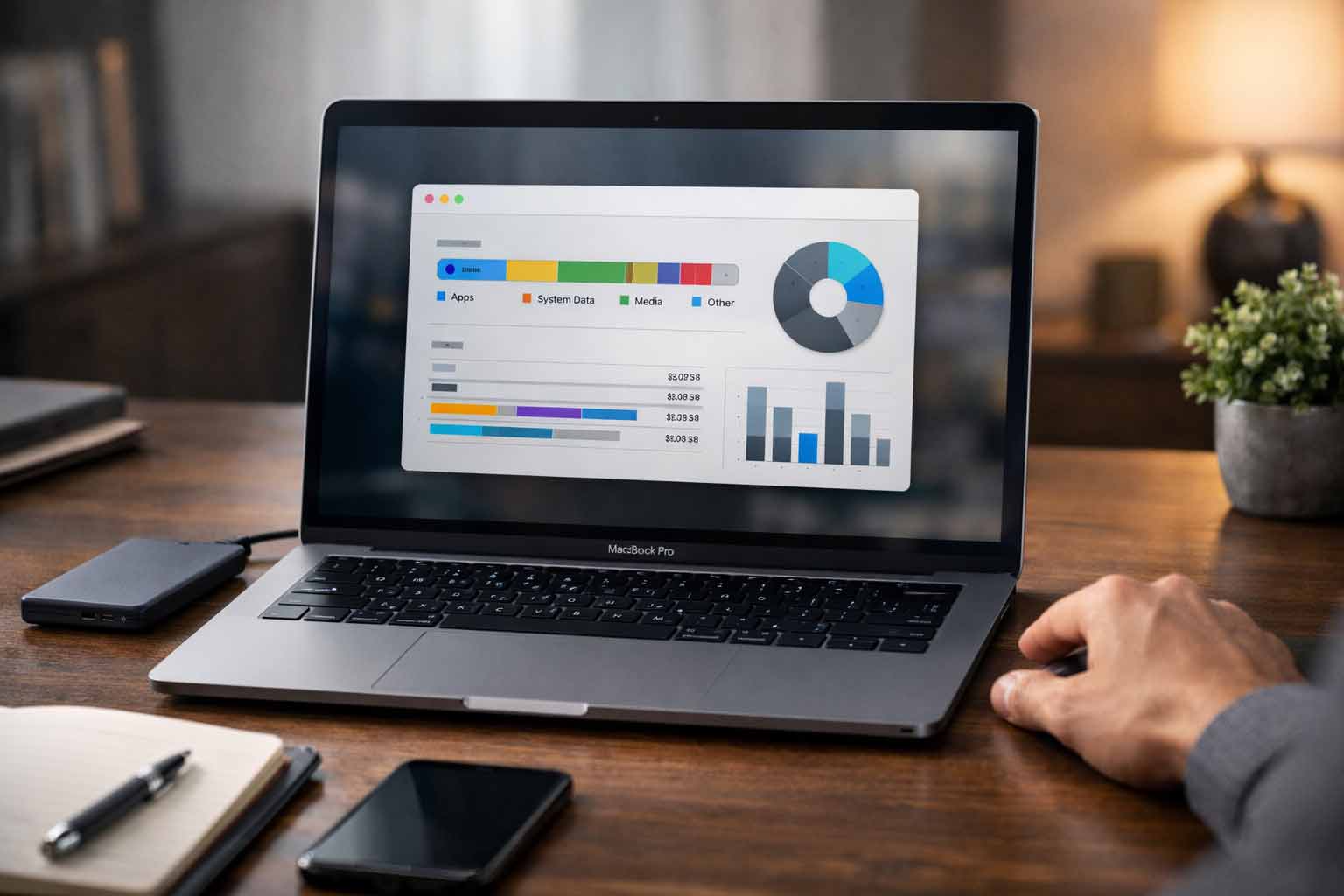
The most practical starting point is the Storage section in System Settings. This view breaks usage into categories such as System Data, Apps, Documents, and Media. Patterns emerge quickly. System Data often surprises users by occupying far more space than expected.
Mail attachments, old iOS backups, and legacy application files frequently linger unnoticed. Removing them can reclaim space, but the real value comes from understanding why they accumulated in the first place.
Cleaning storage is useful, but it is not a long term solution on its own. Removing unused files buys time, not permanence. The goal is to understand how quickly space fills during normal work weeks.
Write down rough sizes for major categories. Documents. Media. Applications. Backups. This snapshot forms a realistic baseline for planning future capacity.
2 Projecting Growth Without Guesswork
Storage needs almost always increase over time. Operating systems grow larger. Applications add features. Personal libraries evolve. Planning assumes growth rather than hoping it stops.
Think in concrete time frames. One year. Two years. Consider how many projects you typically complete. How many photos you take. How often you install new tools. These patterns repeat more predictably than most people expect.
A calculator turns these patterns into ranges rather than exact guesses. You see best case and worst case scenarios instead of a single number. This helps avoid both overbuying and underestimating.
This shift changes the mindset. Instead of asking what is cheapest today, you ask what will still feel comfortable long after the excitement of a new Mac fades.
Internal Storage and the Cost of Convenience
Internal storage offers the cleanest experience. No cables to manage. No drives to forget. Everything works exactly as macOS expects. For users who travel often, this simplicity has real value.
The downside is cost. Apple charges a premium for internal capacity, and price jumps between tiers can feel steep. Paying for unused space feels wasteful, yet underestimating feels risky.
Internal storage also limits flexibility. Once chosen, it cannot adapt easily to changing workflows. This is not a flaw, but it requires confidence in your estimates.
Internal upgrades make the most sense when mobility, simplicity, and consistent speed matter more than cost.
External Storage as a Flexible Alternative
External storage adds capacity without committing everything upfront. Modern external SSDs are fast enough for many tasks, including media editing and large file management.
For desktop setups, the experience is often seamless. Drives remain connected, and workflows adjust naturally. For laptops, externals require more discipline but offer significant savings.
External storage also spreads spending over time. Instead of paying a large premium at purchase, you add space when you actually need it. This reduces regret if usage patterns change.
For deeper guidance on formats, speeds, and connection types, this external storage guide provides practical context grounded in real use cases.
3 Balancing Performance With Budget Reality
Performance is closely tied to available free space. A nearly full fast drive can feel slower than a slightly slower drive with breathing room.
Maintaining a buffer matters. Keeping at least twenty percent free allows macOS to manage temporary files efficiently and reduces write amplification on solid state memory.
Ignoring this buffer shortens drive lifespan and increases slowdowns. Including it in planning avoids repeated frustration.
If your Mac already feels sluggish, storage pressure may be contributing. Addressing it pairs naturally with steps for speeding up your Mac through system tuning and cleanup.
Informational Comparison Table
| Option | Upfront Cost | Day to Day Speed | Upgrade Flexibility |
|---|---|---|---|
| Internal SSD | High | Excellent | Low |
| External SSD | Medium | Very Good | High |
| Cloud Storage | Low Monthly | Variable | Very High |
Understanding SSD Lifespan Over Time
Solid state drives wear gradually through write cycles. Under normal use, modern drives last many years. Problems arise when free space is consistently low and the system relies heavily on swapping and rewriting data.
Larger drives distribute writes across more memory cells. This reduces wear on individual cells and maintains consistent performance over time.
Choosing sufficient capacity is therefore not only about convenience. It directly affects longevity and stability.
For a neutral technical overview, the solid state drive explanation outlines how modern storage behaves without marketing claims.
4 Choosing What Fits Your Work Style
Laptop users who travel often benefit from internal storage. Fewer accessories simplify daily routines. External drives add friction on the move.
Desk based users gain flexibility from external solutions. Drives remain connected and accessible without inconvenience.
Creative professionals often combine approaches. Active projects stay internal for speed. Archives and completed work move externally. This hybrid model balances cost, performance, and peace of mind.
There is no universal best choice. There is only the choice that fits how you actually work, not how you imagine you might.
A Steadier Path for Your Mac
Storage upgrades work best when they feel uneventful. No emergency warnings. No rushed purchases. Just enough space to work comfortably today and tomorrow.
Measuring usage, projecting growth, and comparing options turns storage into a planned decision rather than a recurring problem. Your Mac remains responsive. Your spending stays intentional. Your focus stays where it belongs.
That sense of control is the real upgrade.